This guide covers restoring data from a File backup set. There are two restore methods, and which one is available to you was decided when the backup set was created.
Contents
The two restore methods
| Normal restore | OpenDirect restore | |
|---|---|---|
| How it works | Downloads and restores the files you select to a location you choose. | Mounts the backup as a read-only drive letter so you can browse it in File Explorer and copy out individual files. |
| Best for | Restoring many files, or a whole folder structure. | Pulling one or two files out of a large backup, or out of a ZIP, RAR or ISO without extracting the whole archive. |
| Encryption | Backup data is encrypted before upload. | Not encrypted. |
| Compression | Compressed, so smaller on the destination. | Not compressed, so uses more storage. |
| Availability | Any File backup set. | Only backup sets created with OpenDirect enabled. |
The two are mutually exclusive. An OpenDirect backup set is designed without encryption or compression — that is a requirement of the feature, not a setting you can change. If encryption is enabled on a File backup set, it is not an OpenDirect backup set and normal restore is the method to use.
For most customers we recommend leaving OpenDirect off and keeping encryption on. Consider OpenDirect only where fast single-file recovery matters more than encryption at rest, and where the data involved makes that an acceptable trade.
Normal restore
-
Log in to the backup software and click the Restore icon on the main interface.
-
Select the backup set and destination, and choose Normal restore for the restore mode. Set the temporary directory for restore files with Browse if you need to, then click Next.
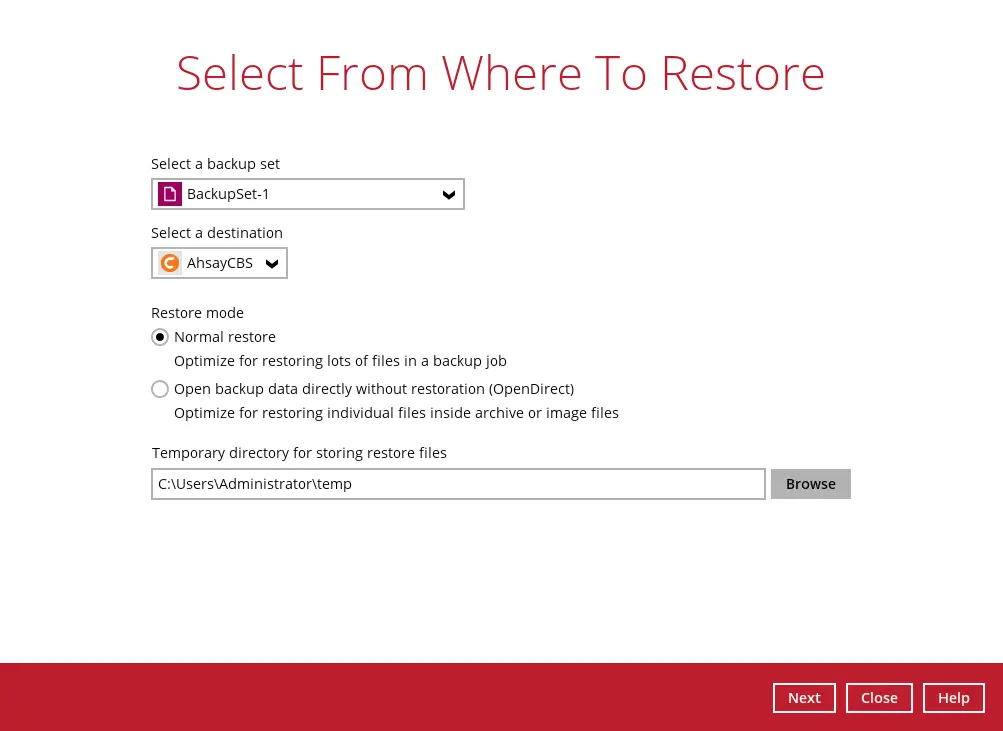
Note: the temporary directory needs free space for the data being restored. Keep it off the Windows system drive.
-
Select the files and folders to restore.
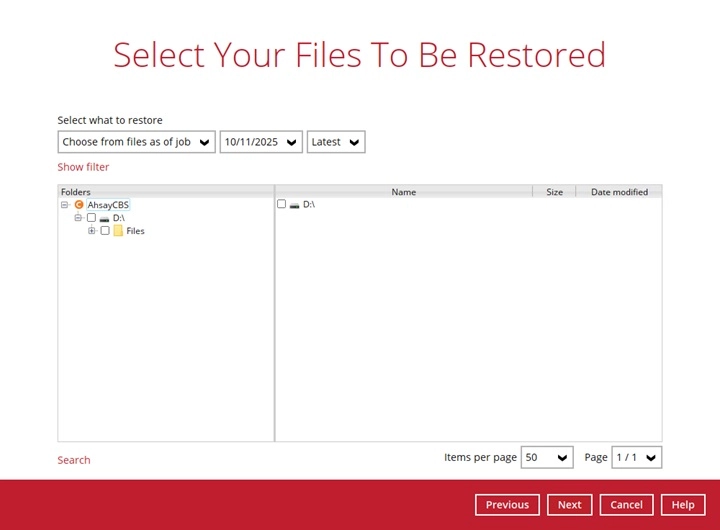
Choosing which version to restore
The Select what to restore drop-down has two options, and the difference matters.
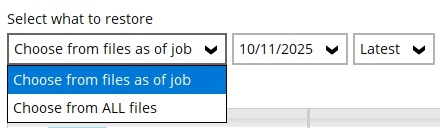
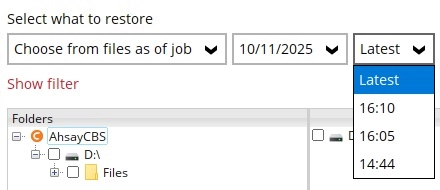
Choose from files as of job restores the files as they were at a particular backup job. Pick the date, then the time of the job on that date.
Choose from ALL files shows every retained version of every file, so you can pick individual versions.
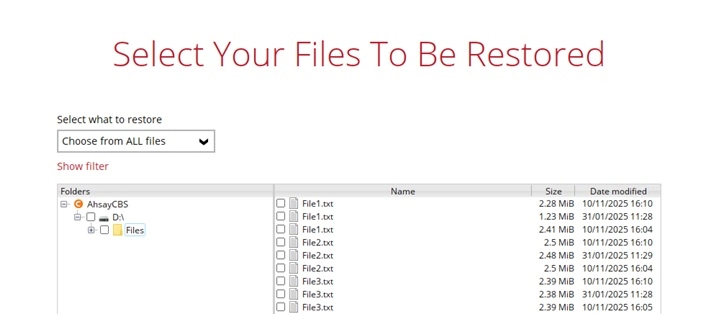
Where a file has several versions, the most recent is at the top and the Date modified column identifies each one.
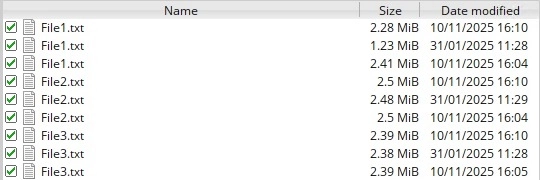
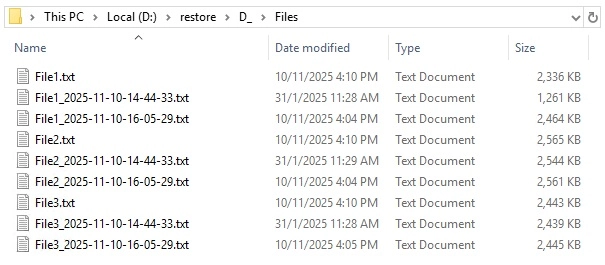
If you restore more than one version of the same file, the latest keeps the original file name and the older versions have a timestamp added, so they can sit side by side in the restore location.
Where the files go
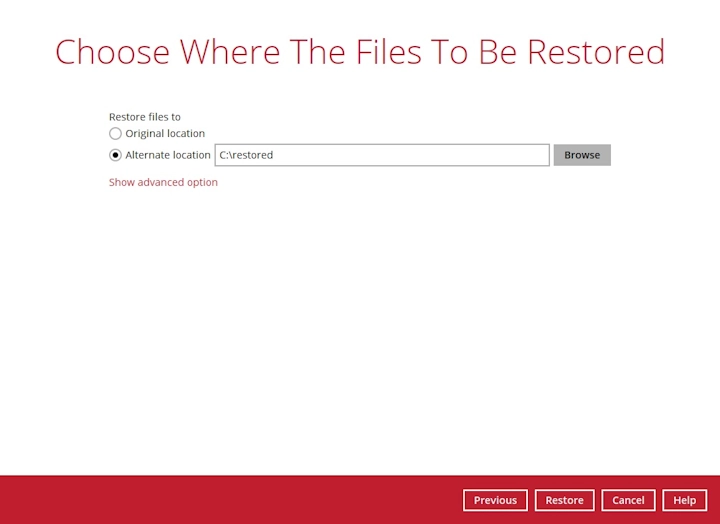
Click Next when the selection is complete, then choose between the original location and an alternate one.
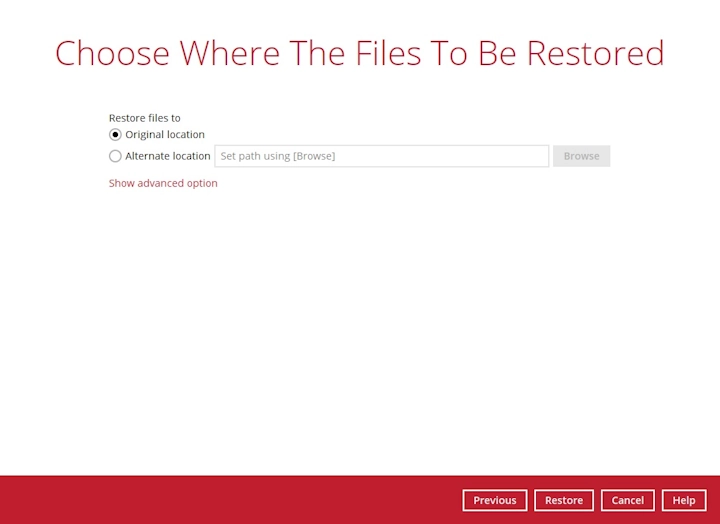
Original location restores to the same directory path on the machine running the backup software as the files had on the machine they were backed up from.
Alternate location restores anywhere you choose. On Windows, select Local Path and browse to a folder.
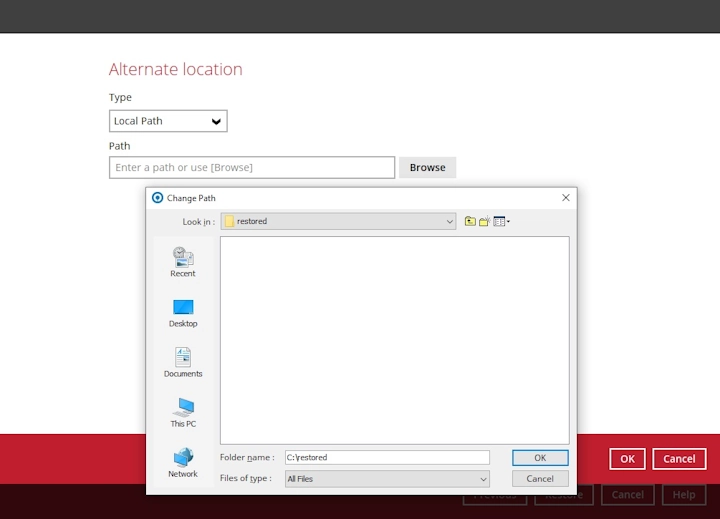
To restore to a network share, select UNC Network Path and enter the address. Tick This share requires access credentials and supply a username and password if the share needs them.
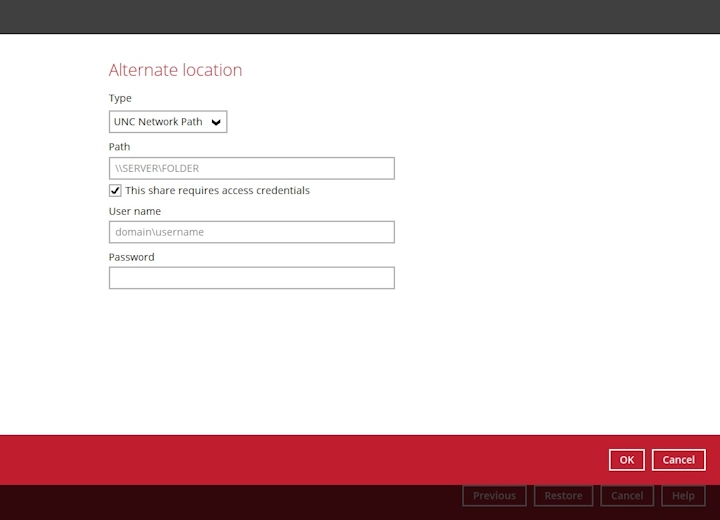
Restoring to a UNC path? Windows only allows one set of credentials per server name at a time. If you already have a session open to that server as a different user, the restore may fail or connect as the wrong account. Close any existing connections with
net use \\server /deletefirst.
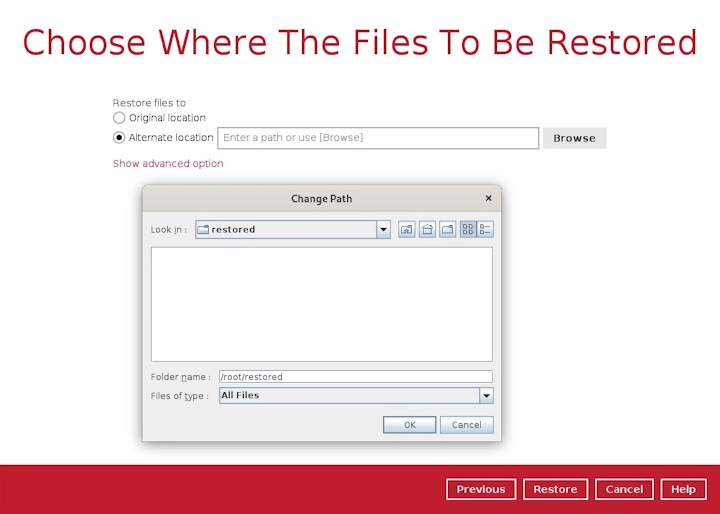
On Linux and macOS, click Browse and select the location.
Advanced options
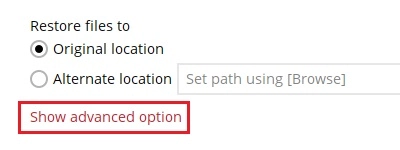
Click Show advanced option for three further settings.
Restore file permissions is off by default. Turn it on when restoring shared files or folders onto a shared computer, so the restored files are not readable by everyone using that machine.
Verify checksum of in-file delta files during restore checks the merged file is correct. It makes the restore take longer, so enable it when you specifically want that verification.
Delete unmatched data in restore location synchronises the restore location with the backup, which means deleting anything in the target that is not in the backup.
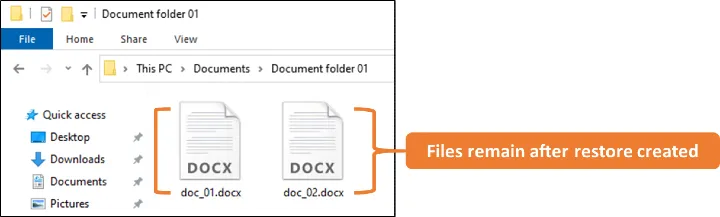
Be careful with this one. Any file created since the backup was taken counts as unmatched and will be deleted. Restoring a folder into its original location with this enabled will remove every file added since — the software warns you before it does, but it is easy to click through.
For example, a folder is backed up with two documents in it:
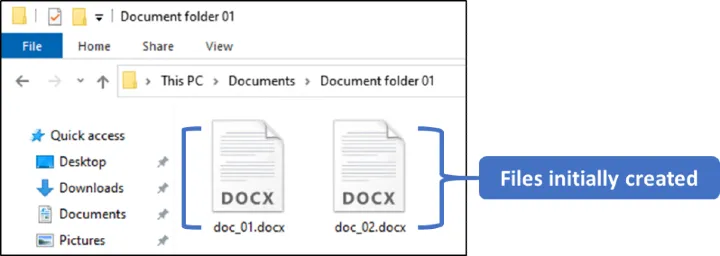
Two more are created afterwards:
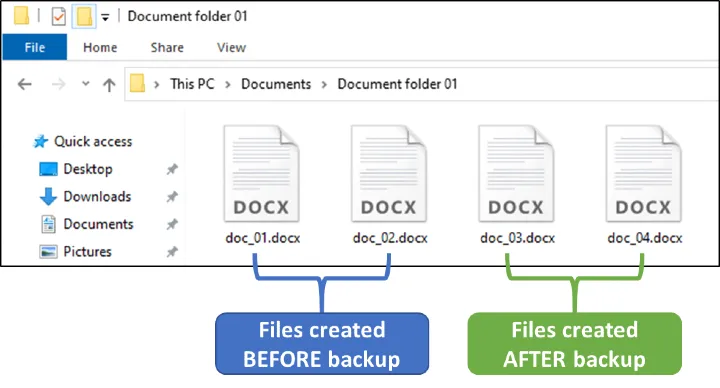
Restoring with Delete unmatched data enabled removes the two newer files, leaving only what was in the backup:
-
Click Restore to start the restore job.
-
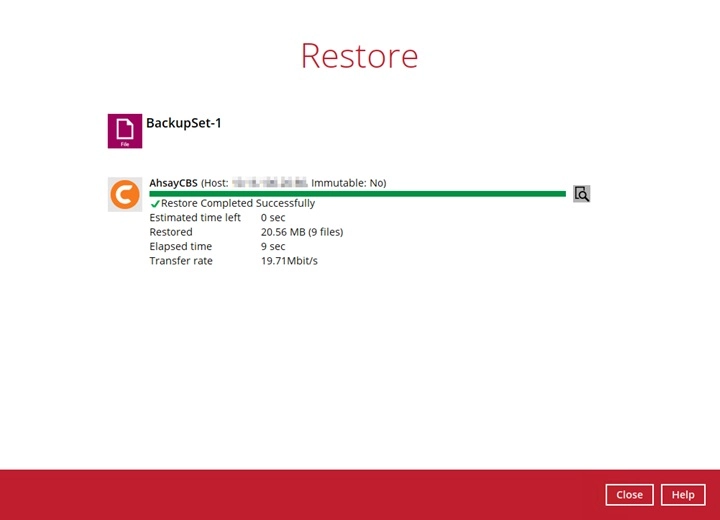
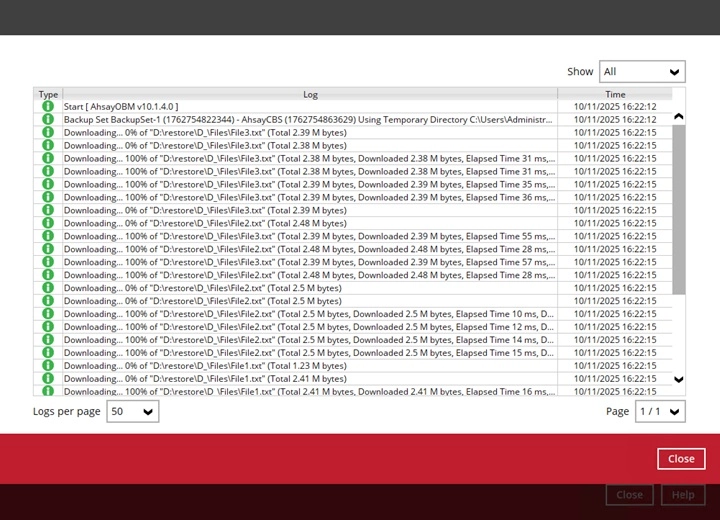
This screen confirms the restore has completed. Click the icon to the right of the progress bar to open the restore log.
OpenDirect restore
This method only applies to backup sets created with OpenDirect enabled. Rather than downloading the files, it mounts the backup as a read-only drive letter so you can browse it in File Explorer and copy out what you need. It also opens ZIP, RAR and ISO files in place, so a single file can be pulled from a large archive without extracting it.
There is no charge for OpenDirect. It must be enabled when the backup set is created and cannot be added afterwards — and, as covered above, an OpenDirect backup set is stored without encryption or compression.
-
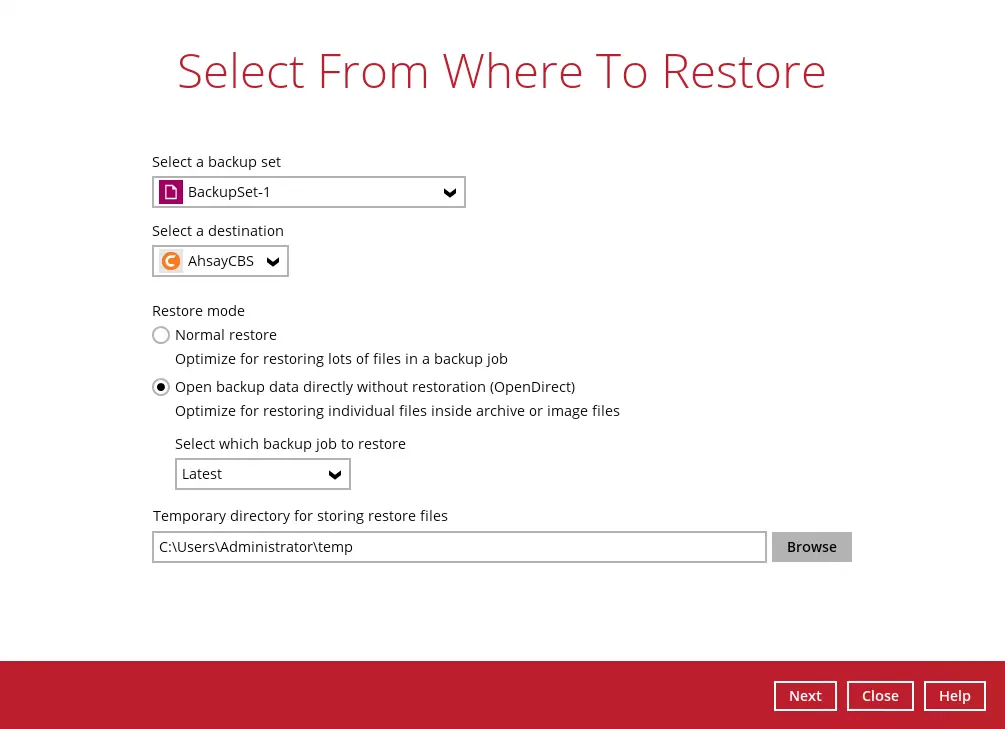
Click the Restore icon, select the backup set and destination, and choose Open backup data directly without restoration (OpenDirect) for the restore mode. You can also pick which backup job to mount; the default is the latest.
-
The first time you run an OpenDirect restore on a machine, you are prompted to install the virtual file system driver. Click Install — declining ends the restore.

-
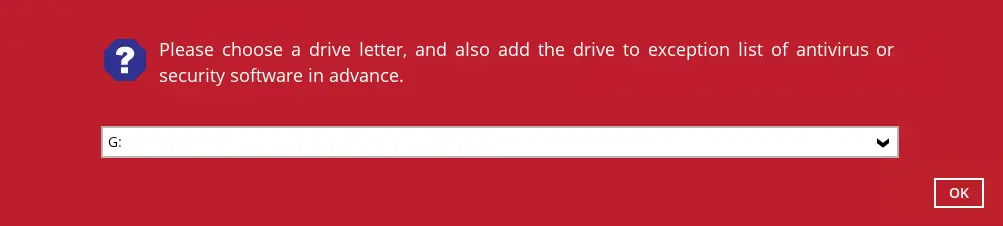
Choose a drive letter for the mount. Add that drive to your antivirus or security software exceptions first, as the prompt suggests, or scanning can interfere with the mount.
-
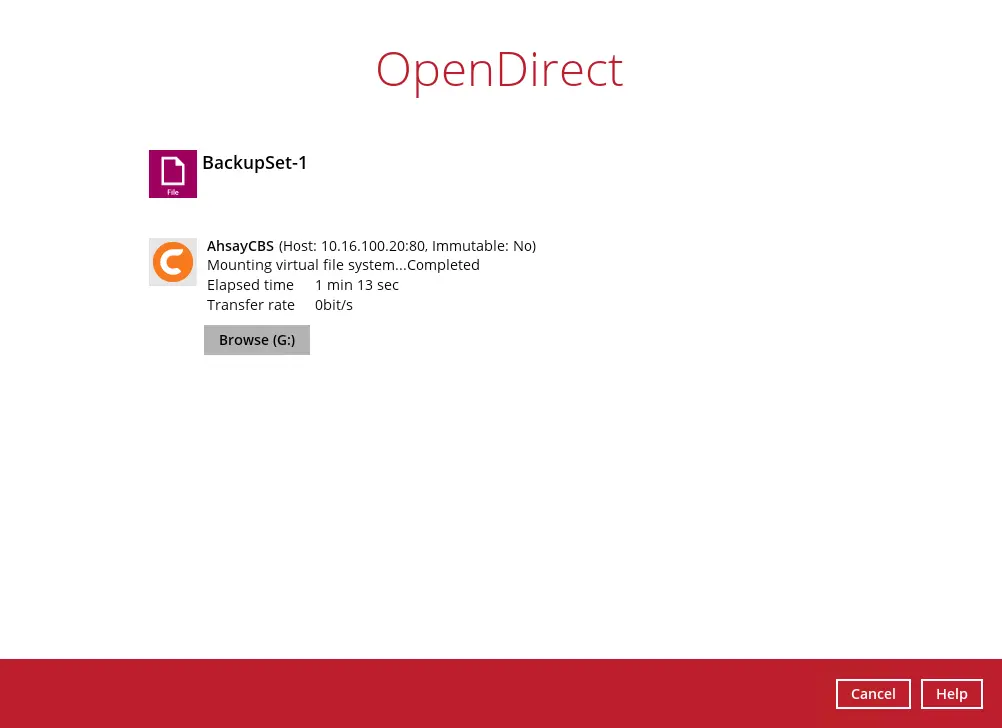
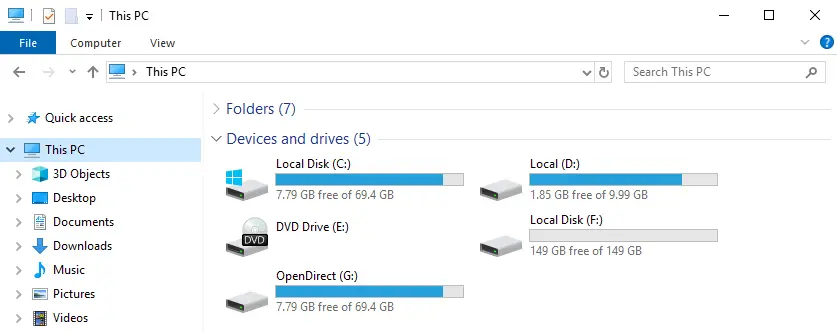
The backup is mounted. Click Browse to open it, or open the drive from File Explorer.
-
Browse to the files you need. Everything is read-only.
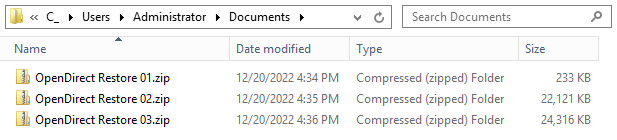
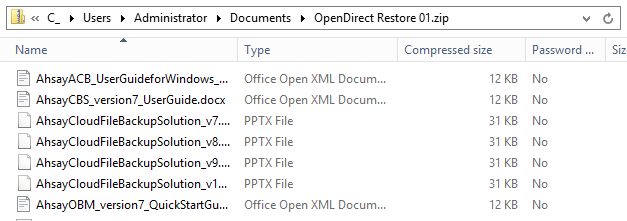
Archives can be opened in place to see the files inside.
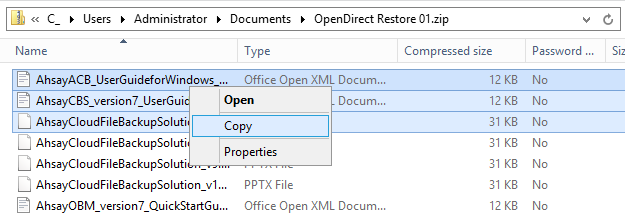
Copy out whatever you need to a local folder.
-
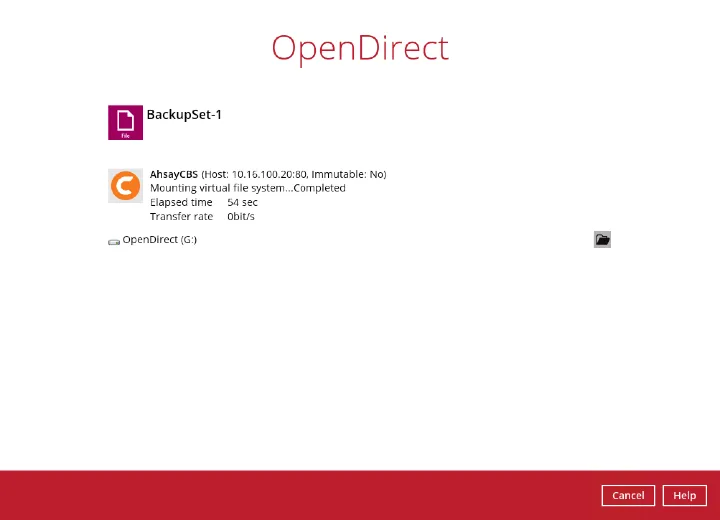
When you have finished, return to the backup software and click Cancel, then Stop the OpenDirect.

Two things to know about OpenDirect sessions.
The mounted drive cannot be ejected from File Explorer. It is only released when you exit the backup software, so each session can mount and unmount once.
An OpenDirect restore leaves no record anywhere. It does not appear on the Restore Status tab in Live Activities, it generates no restore report or report email, and it writes no restore log. If you need to evidence that a recovery took place, use a normal restore instead.
Troubleshooting
| Symptom | Cause and fix |
|---|---|
| The OpenDirect restore mode is greyed out or missing | The backup set was not created with OpenDirect enabled. It cannot be added to an existing set — a new backup set and a fresh baseline would be needed. |
| Files were deleted from the restore location unexpectedly | Delete unmatched data in restore location was enabled. Anything created since the backup is treated as unmatched and removed. |
| Restoring to a UNC path fails or connects as the wrong user | Windows allows only one set of credentials per server name. Close existing sessions with net use \\server /delete and check Credential Manager for stored entries. |
| Restored files are readable by everyone on a shared machine | Restore file permissions was left off. Re-run the restore with it enabled. |
| The mounted OpenDirect drive will not eject | Expected. It is released only when you exit the backup software. |
| An OpenDirect restore does not appear in reports or logs | Expected — OpenDirect restores are not recorded. Use a normal restore where an audit trail is needed. |
| Restore fails partway with insufficient disk space | The temporary directory has run out of room. Point it at a drive with space for the restore. |
| Only one version of a file is offered | The restore is set to Choose from files as of job. Switch to Choose from ALL files to see every retained version. |
If you need a hand with any of the above, contact us at support@bobcloud.net.