Use this when a customer replaces or rebuilds a computer or server and wants its backups to carry on as before. You keep the same backup account and the same backup sets. The new machine takes over the existing sets and the next backup is incremental, so nothing is uploaded again.
Important: Before the new machine takes over, switch the old machine off or turn off the schedules on all its backup sets. If both machines are left running, each one will keep taking the backup sets back from the other, and backups will fail or run from the wrong machine.
Before you start:
- Install the same version of the software on the new machine, or a newer one.
- Both machines must run the same type of operating system. You can't move a backup set from Windows to Linux, for example.
- Copy the settings folder from the old machine (recommended). Copy this hidden folder to the same place on the new machine:
- Server software:
C:\Users\<username>\.obm - Desktop software:
C:\Users\<username>\.acb
If you're not sure where it is, the path is written in the
home.txtfile in the software's install folder. If you can't copy this folder, the software will ask for each backup set's encryption key before you can use that set. Have the keys ready. - Server software:
- Install the BOBcloud software on the new machine. Download the latest version from the customer's page in your reseller portal: https://portal.bobcloud.net
- Take ownership of each backup set. Open the software and log in with the customer's existing backup account. Then, for each backup set:
- Go to Backup Sets and open the backup set.
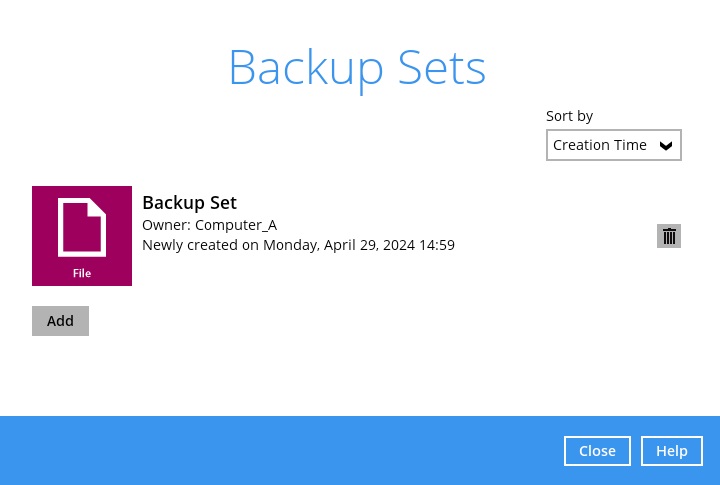
- Under Backup Schedule, turn on Run scheduled backup for this backup set.
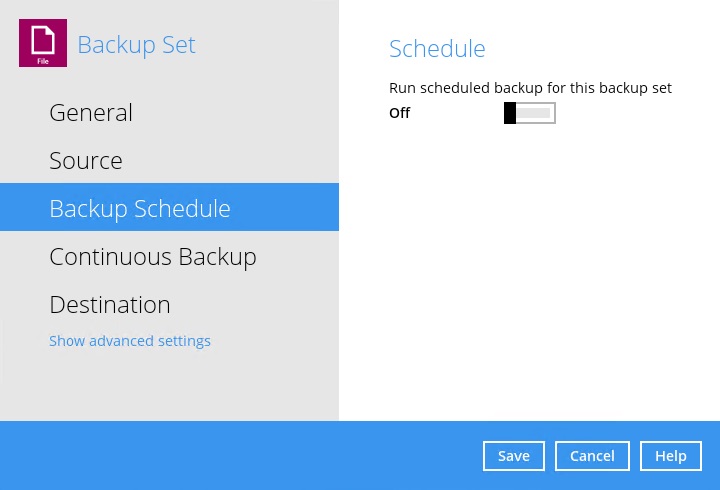
- When the software asks whether this computer should take ownership of the backup set, click Yes.
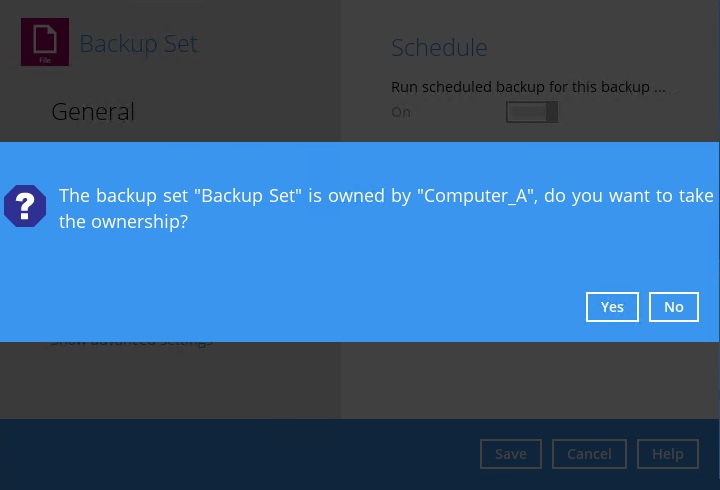
If a backup set has no schedule, add a temporary one so that you get the ownership prompt. Delete the schedule once ownership has moved.
- Go to Backup Sets and open the backup set.
- Check the owner. In Backup Sets, the Owner field for each set should show the new machine's name.
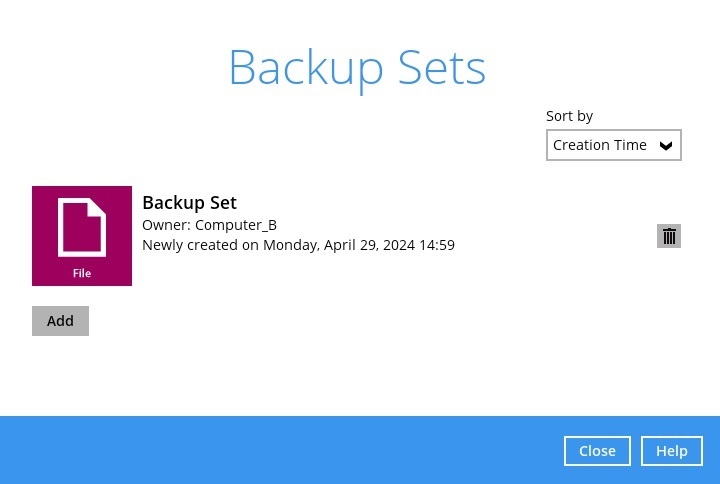
- Windows only: check the Windows login details. Open each backup set, go to General and update the Windows User Authentication details if the username or password on the new machine is different.
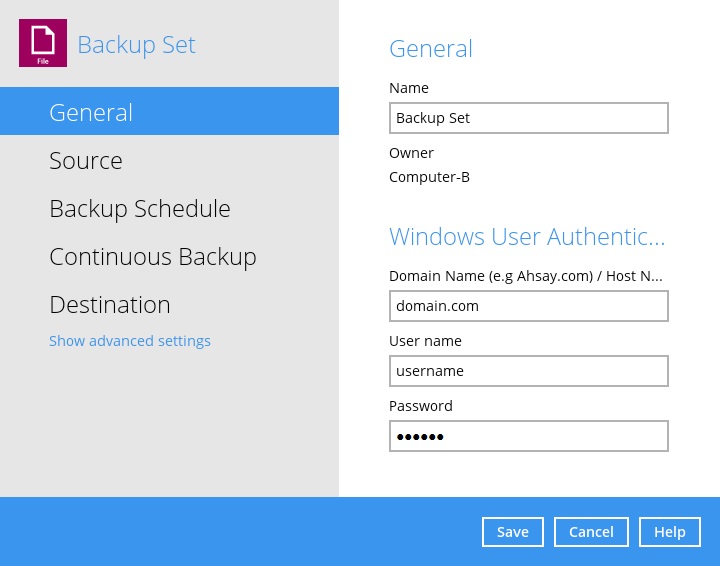
- Turn Continuous Backup back on if it was used. Open each backup set that had it on the old machine, go to Continuous Backup and turn on Backup whenever a change is made.
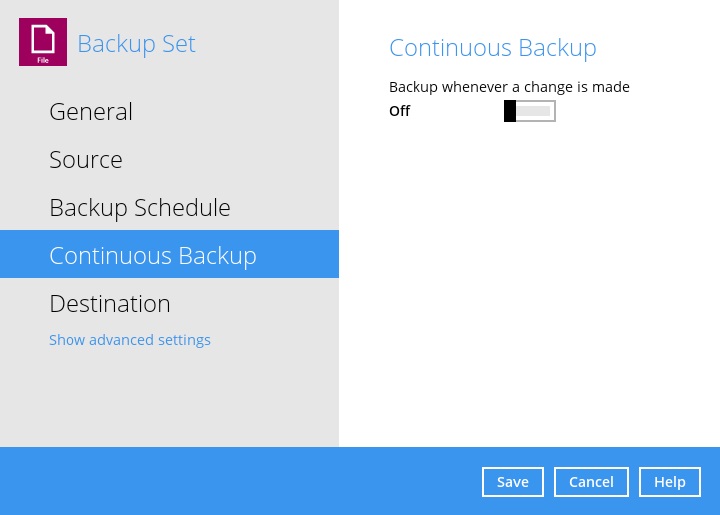
- Check the backup source. If drive letters or folder paths on the new machine are different, update each backup set's source to point at the right place. Then run a backup and confirm that it completes.
Linux (Server software, command line)
On a Linux server with no desktop, do step 3 with the configurator in the software's bin folder:
- Run
sh RunConfigurator.shand log in. - Export the backup set's settings to an XML file (option 3).
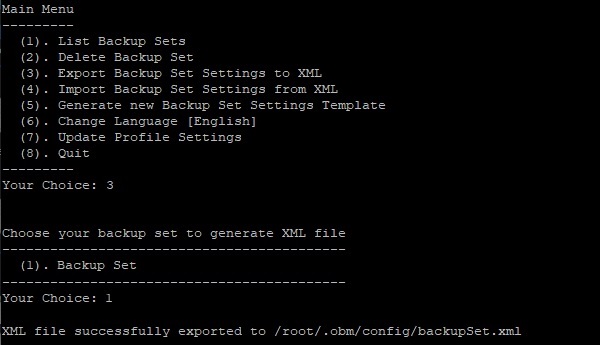
- Open
backupSet.xmlin a text editor and change Enable scheduled backup on this computer fromNtoY.
- Import the edited settings. Enter
Ywhen asked to take ownership, thenYagain when asked to overwrite the existing settings.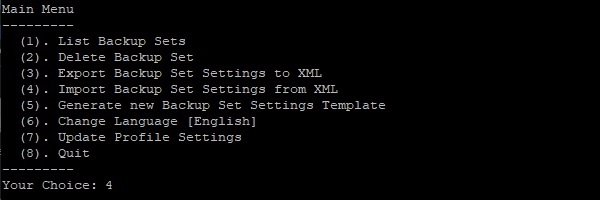
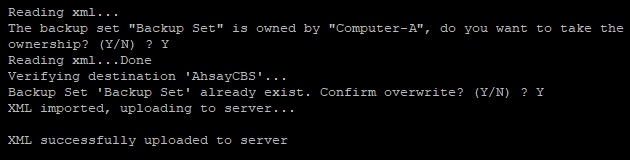
- To confirm the change, run the configurator again and list the backup set's settings. The Owner value should show the new server.
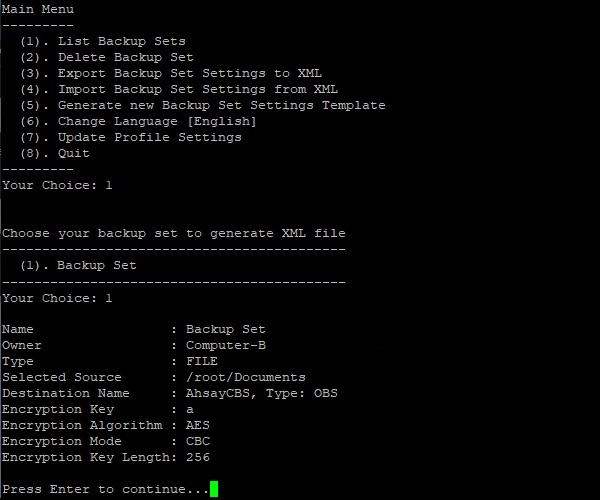
If anything fails, zip the .obm (Server) or .acb (Desktop) folder on the new machine and attach it to your support ticket. These folders are hidden, so on Windows type the path into File Explorer's address bar.