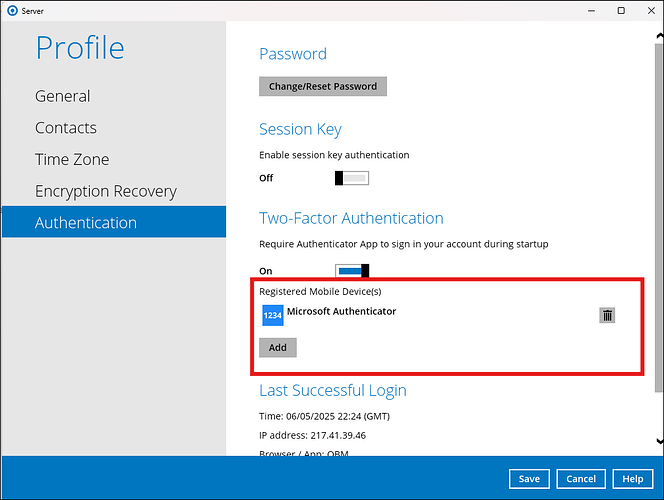
You can enforce two-factor authentication (2FA) across all of your BOBcloud installations, or bypass it.
Why use 2FA?
If an unauthorised user gains access to your systems, they could encrypt your data, delete your backup sets and permanently erase all stored backups.
With 2FA enabled on all your devices, users must complete a verification challenge with the Microsoft Authenticator app before they can open the software.
Scheduled backups continue to run as usual and are not affected by 2FA. They are run by the backup service in the background, which doesn’t need to log in.
How to enable 2FA
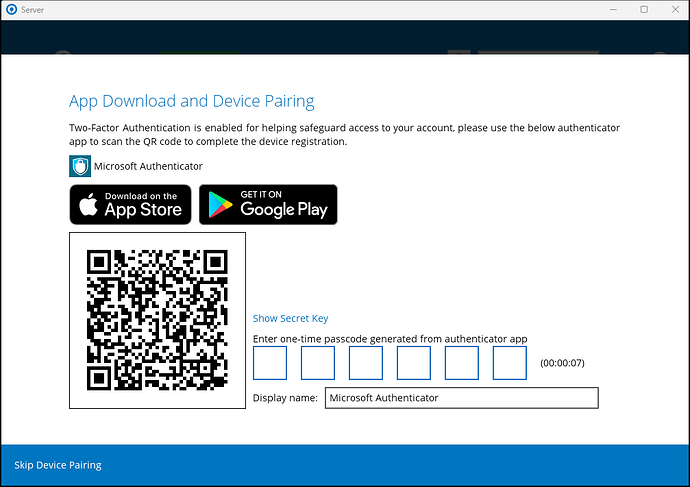
After you log in to the backup software on your device, you will see the two-factor authentication (2FA) screen.
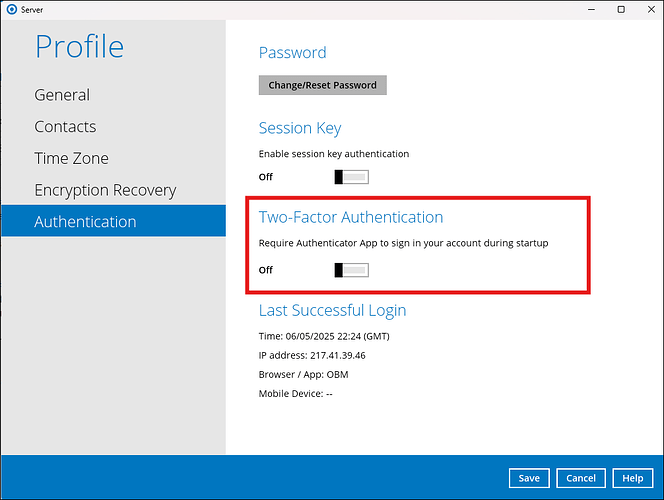
You can add or remove 2FA for other users on your account, so you have full control over your organisation’s security settings.