This guide covers restoring data from a Microsoft 365 backup set: what can be restored, where it can be restored to, and the walkthrough itself. For creating the backup set in the first place, see How to Create a Microsoft 365 Backup Set.
Contents
What you can restore, and where to
Data is grouped into four sources, matching how it was backed up:
| Source | Contains |
|---|---|
| Users | Outlook, Outlook (Archive), OneDrive, Personal Site and Teams Chat |
| Teams | Group Mail, Group Site and Teams Channel |
| SharePoint Sites | Top-level site, Lists and Libraries, and subsites |
| Public Folders | Top-level site and public folders |
Note: if the backup set was authorised with a personal Microsoft account rather than a business one, only Users and Public Folders are available.
There are two restore methods, and which one you can use depends on the data.
Restoring back into Microsoft 365
Puts the data back into a live Microsoft 365 tenant. Three locations are available:
| Location | What it means |
|---|---|
| Original | Back into the same Microsoft 365 account the data came from. |
| Alternate | A different user, group, site or public folder within the same domain. You map each backed-up item to a target on the next screen. |
| Alternate login account | A different Microsoft 365 organisation entirely, on a different domain. Requires authorising against that tenant during the restore. |
Exporting as archive files
Writes the data out as files rather than putting it back into Microsoft 365. Content is converted on the way out:
| Data | Exported as |
|---|---|
| Emails | PST |
| Teams Chat and Teams Channel | HTML |
| SharePoint Sites lists | CSV |
The archive can be written to the local computer running the backup software, to the OneDrive of a user in the original organisation, or to the OneDrive of a user in a different organisation.
Two constraints worth knowing before you start:
Teams Chat and Teams Channel can only be exported — they cannot be put back into Teams. Microsoft’s API has no way to write messages back into a thread, so conversations come back as readable HTML, not as live chats. This applies to every backup product, not just this one.
SharePoint Sites and Public Folders can only be exported to Local when using the archive method — the OneDrive destinations are not available for them.
Archive, Group Mail and Public Folders (EWS retirement)
Microsoft has begun retiring Exchange Web Services (EWS) in Exchange Online. It is being switched off tenant by tenant from 1 October 2026 and is turned off permanently on 1 April 2027. Restoring Outlook (Archive), Group Mail or Public Folders back into Microsoft 365 depends on EWS:
- Until 1 April 2027, restoring these into Microsoft 365 only works if EWS is enabled on the target tenant, with the backup application on its EWS allow list. Users licensed as Exchange Online Kiosk, F1 or F3 are blocked from EWS regardless of tenant settings.
- After 1 April 2027, these cannot be restored back into Microsoft 365. The data remains in the backup for as long as retention keeps it. Use Save archive files to a destination > Local to export it, for example as PST for mail.
Everything else — Outlook mailboxes, OneDrive, Personal Sites, SharePoint, Group Sites and Teams — is unaffected. For the tenant setting and the full detail, see Microsoft EWS retirement on the backup set guide.
Restore targets need a Microsoft licence. The account you restore into needs an Exchange Online licence for Outlook items, and a SharePoint Online licence for OneDrive or Personal Site items.
Restoring data
-
Log in to the backup software and click the Restore icon on the main interface.
-
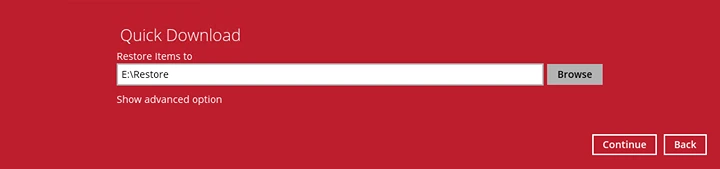
Select the backup set and the destination to restore from. You can also set the temporary directory used to stage restore files by clicking Browse.
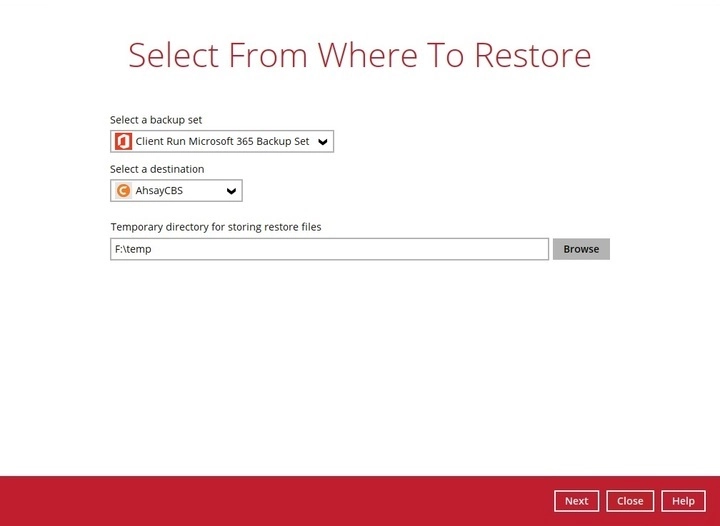
Note: the temporary directory needs free space for the data being restored. As with backups, keep it off the Windows system drive.
-
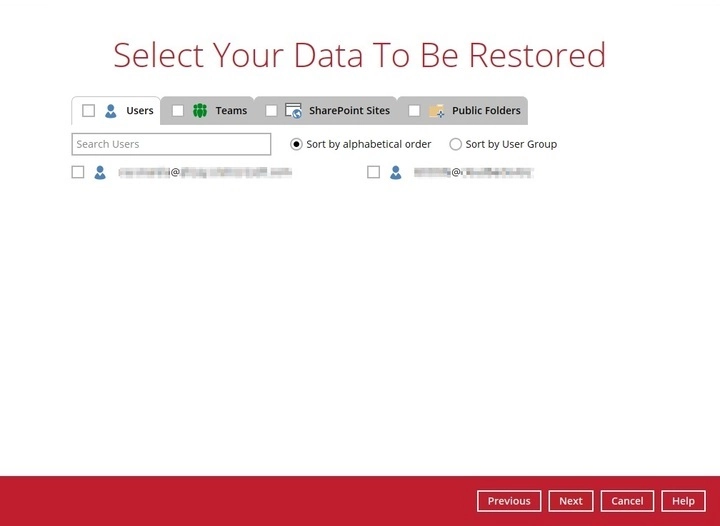
Choose which source to restore from. With a business account you get Users, Teams, SharePoint Sites and Public Folders; tick a heading to select everything under it, or expand it to pick individual users, groups, sites or folders.
With a personal account, only Users and Public Folders appear.
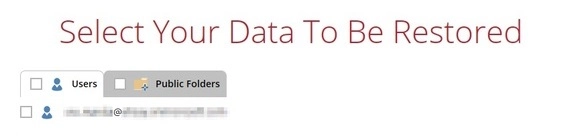
Note: what appears here depends on what was actually backed up. From v10.3 onwards, all data types can be restored in the same job.
-
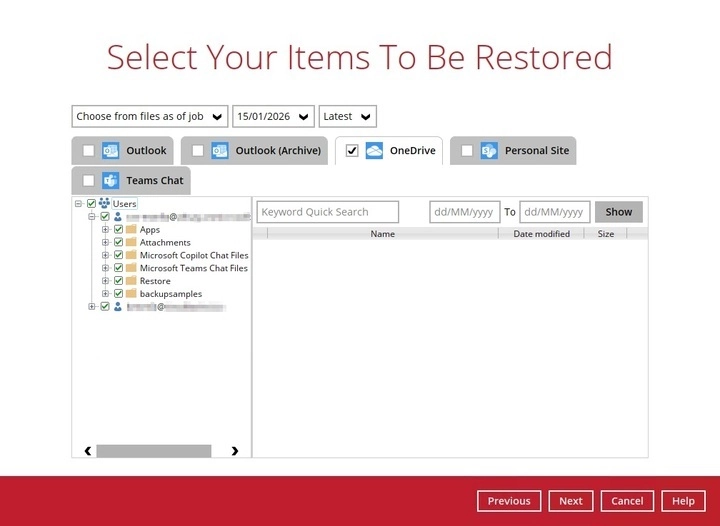
Select the items to restore. Use the drop-downs at the top to restore from a specific backup job rather than the latest.
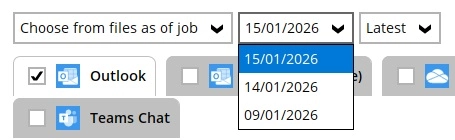
The tabs available depend on the source you chose in the previous step. Ticking a tab heading restores everything under it.
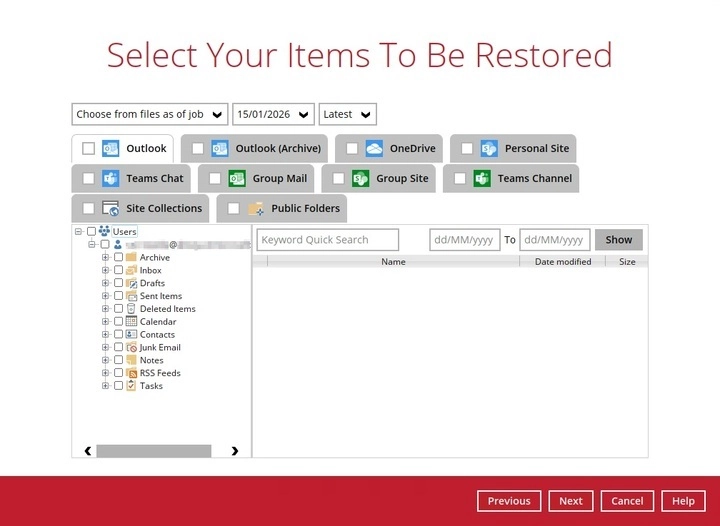
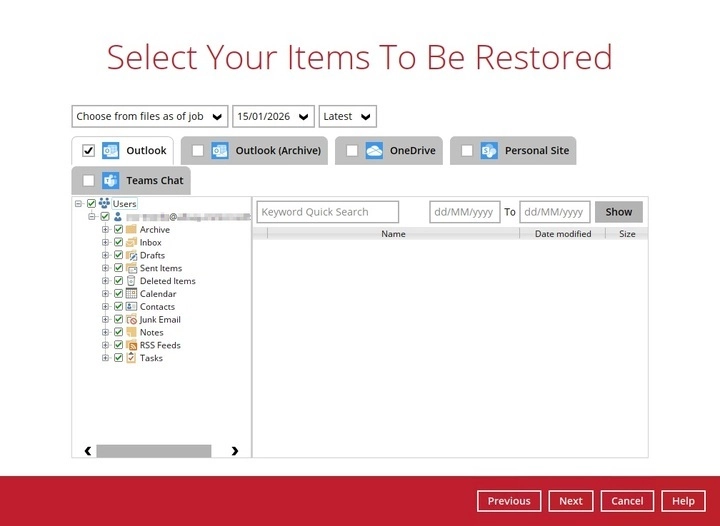
For Outlook, expand the folder tree on the left to reach individual messages. Items can be filtered by keyword and by received date using the From and To fields, then Show.
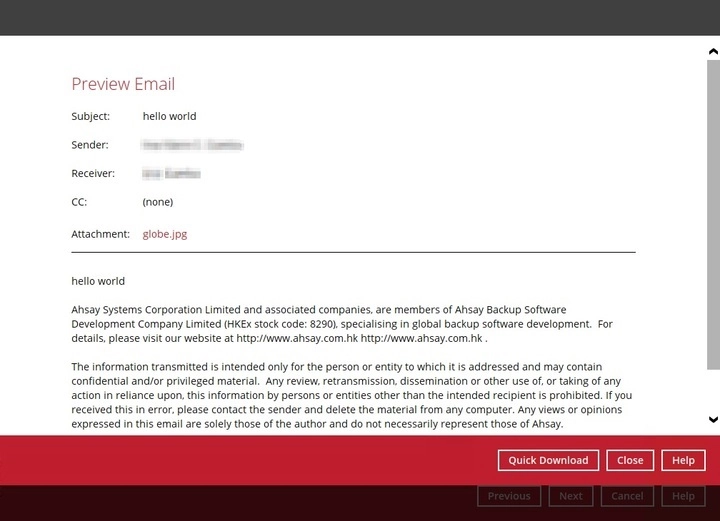
Click the magnify button beside a message to preview it before restoring. From the preview you can restore that single message with Quick Download, or download just an attachment by clicking the attachment name.
OneDrive and Personal Site work the same way, with a download button beside each file for retrieving a single item directly.
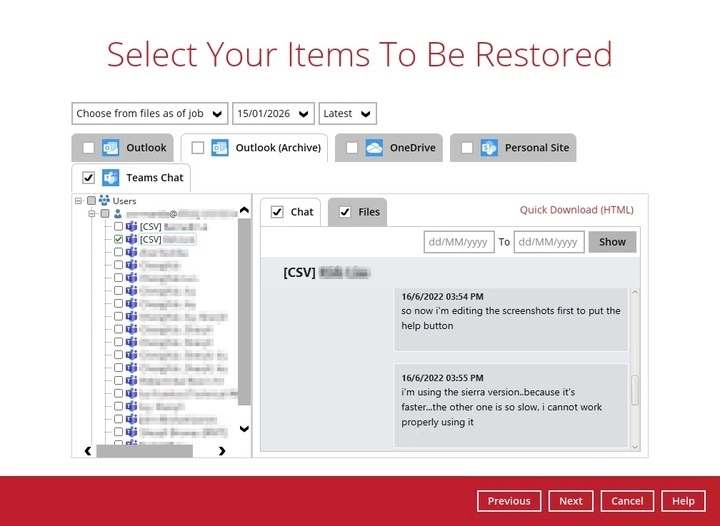
Teams Chat and Teams Channel show the conversation content on the right, with Chat and Files filters. Use Quick Download (HTML) to export a single conversation.
Group Mail, Group Site, Site Collections and Public Folders follow the same pattern: tick the heading for everything, or expand the tree and select individual items, with preview or download available per item.
Click Next when the selection is complete.
-
Choose where the items will be restored to.
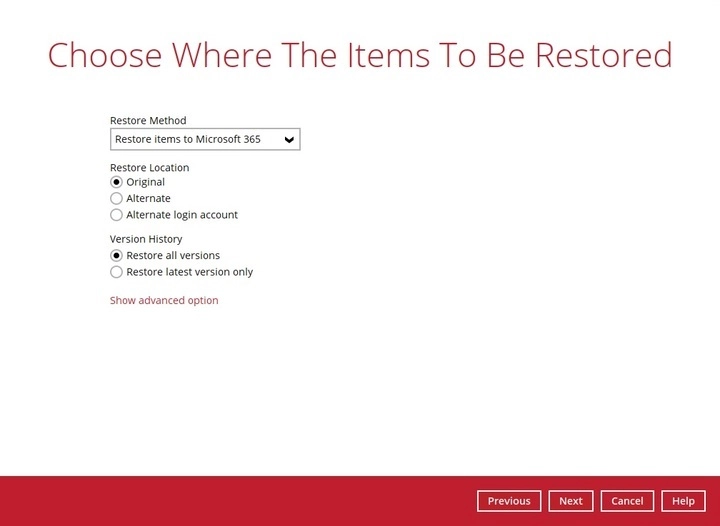
Pick the Restore Method first — this determines which locations are offered.
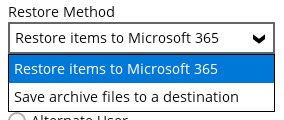
-
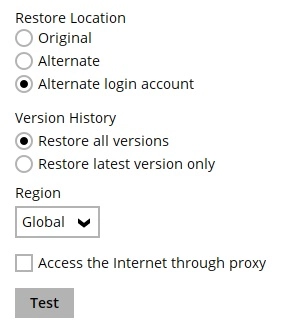
If restoring into Microsoft 365, select Original, Alternate or Alternate login account.
Set Version History to restore all versions or only the latest. This is only available for OneDrive, Personal Site, Group Site and Site Collections — it does not apply to mail.
Click Show advanced option for the overwrite behaviour. Overwrite when exist replaces data already present in the account; Skip when exist leaves it alone and moves on.
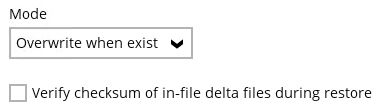
Choose the mode deliberately. Overwrite is the default. If you are restoring a handful of items into a mailbox that has been in use since the backup, Skip is usually the safer choice.
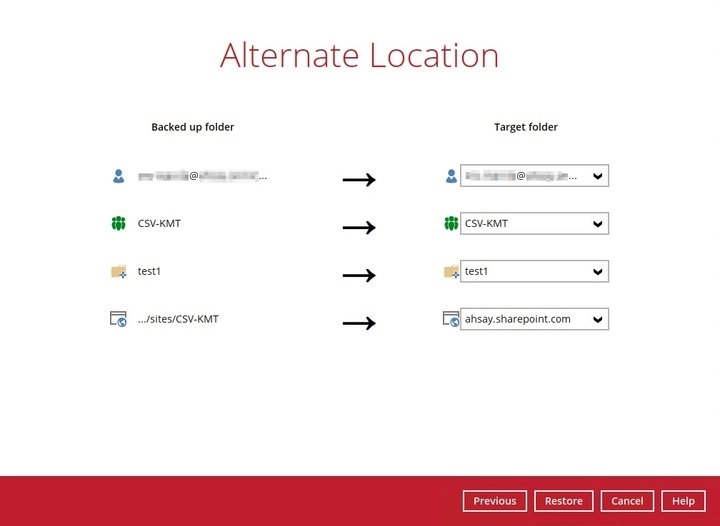
For Alternate, the next screen maps each backed-up item to a target in the same domain.
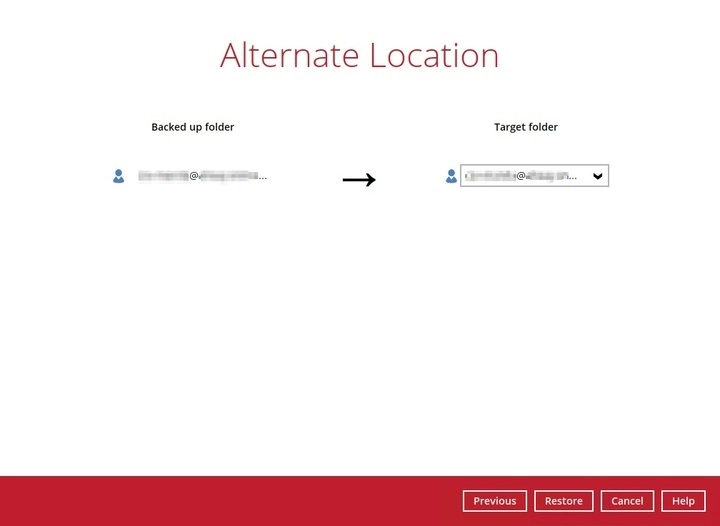
Where several sources were selected, each one is mapped separately.
For Alternate login account, set the Region, click Test, then Authorise. Sign in to the other Microsoft 365 account in the pop-up browser window, copy the authorisation code back into the box and click OK. Then select the target user.
-
If exporting archive files, choose Local, or the OneDrive of the original or an alternate organisation.
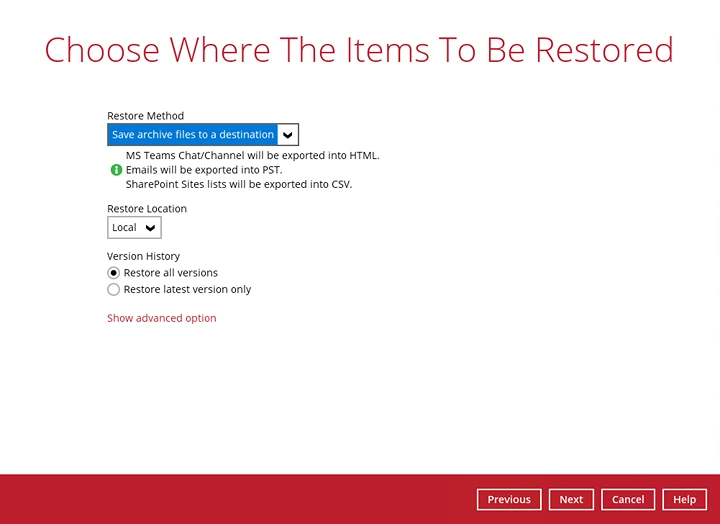
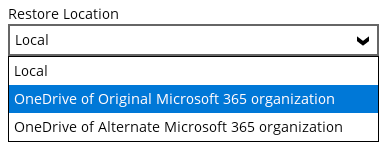
Set Version History here as well if you are exporting OneDrive, Personal Site, Group Site or Site Collections data.
Restoring to a OneDrive is only available for Users, Teams and Public Folders. When you use it, the owner can be notified by email or Teams Chat that data has been placed in their Restore folder.
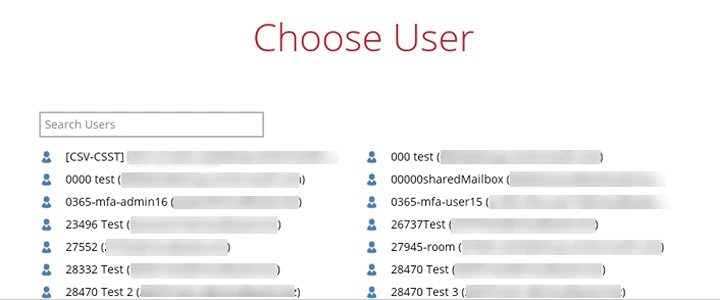
Where a user must be chosen, a picker is shown.
-
Click Restore to start. This screen is shown when the restore completes.
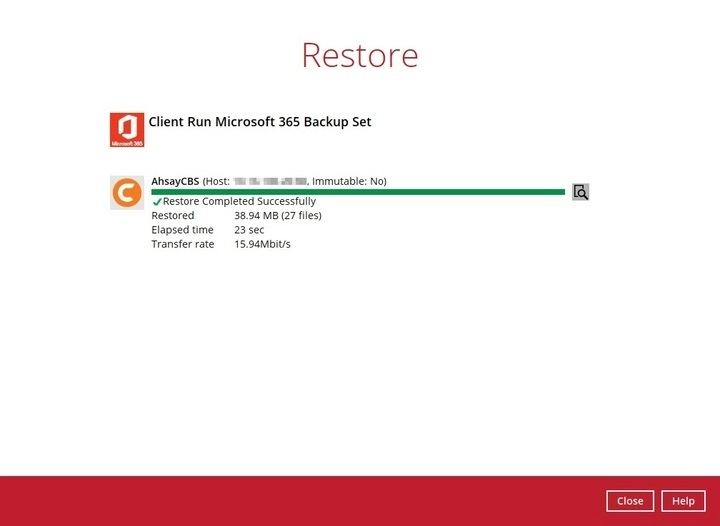
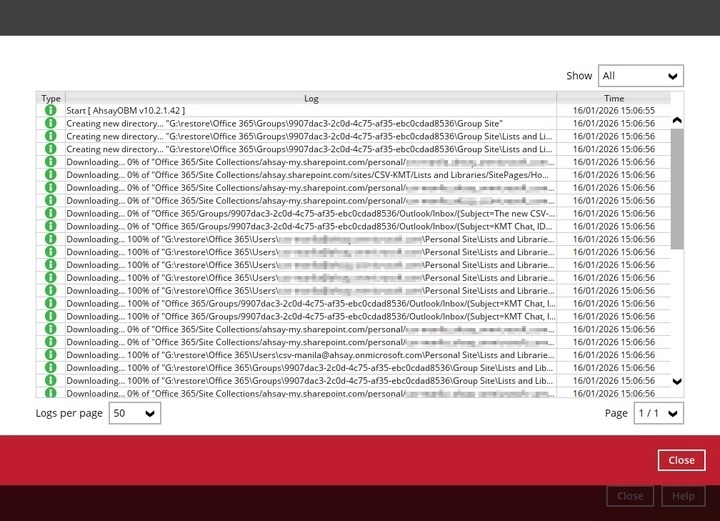
Click the magnify button to open the restore log and confirm what was written.
Troubleshooting
| Symptom | Cause and fix |
|---|---|
| Teams Chat or Channel offers no option to restore into Teams | Expected. Microsoft provides no way to write messages back into a thread, so the only method available is exporting archive files as HTML. |
| OneDrive destinations are missing for SharePoint or Public Folders | Expected. When exporting archive files, those two sources can only go to Local. |
| Version History options are greyed out | Version history only applies to OneDrive, Personal Site, Group Site and Site Collections. It is not offered for mail. |
| Only Original and Alternate login account are offered | The backup set was authorised with a personal Microsoft account. Alternate within the same domain needs a business account. |
| Only Users and Public Folders appear as sources | Same cause — a personal account was used to authorise the backup set. |
| A tab you expected is missing at item selection | That data type was not included in the backup. Check the backup source on the backup set. |
| Restore fails partway with insufficient disk space | The temporary directory chosen in step 2 has run out of room. Point it at a drive with space for the restore. |
| Outlook (Archive), Group Mail or Public Folder restore into Microsoft 365 fails from October 2026 | EWS has been switched off on the target tenant. Enable it and add the backup application to the EWS allow list (works until 1 April 2027), or export to Local instead. See EWS retirement. |
| HTTP 403 when restoring to a user’s archive mailbox | The target user is licensed as Exchange Online Kiosk, F1 or F3, which Microsoft blocks from EWS. Assign a licence with EWS rights, such as Exchange Online Plan 1 or 2, or Microsoft 365 E3/E5, or export to Local. |
| Restore to a user fails with a licence error | The target account has no Exchange Online licence (for Outlook items) or SharePoint Online licence (for OneDrive or Personal Site items). Assign one and retry. |
| Restored files come back without their original sharing | Share links on OneDrive and SharePoint documents are only restored within the same Microsoft 365 organisation. Restoring to a different organisation (Alternate login account) drops them — re-sharing is manual. When restoring to an alternate location in the same organisation, all share link types only come back if Limited-access user permission lockdown mode is deactivated under Site collection features, and SharePoint external sharing is set to at least Existing guests. |
| Version History options are not offered for some SharePoint files | All-versions restore does not apply to .aspx pages. They restore as the latest version only. |
| Some SharePoint lists are skipped during restore | Certain list types, such as Microfeed on classic team sites, cannot be written back through Microsoft’s API. Most site and list settings, site logos and workflow templates are also not restored — revisit them after the restore. |
| Restored news posts do not appear on the site home page | Expected on modern team sites. Go to Site contents > Site Pages and post each news item again. |
| Restoring SharePoint files to Local fails for some items | The name contains a character Windows does not allow (/ \ | * : " < >). Restore those items back into Microsoft 365 instead. |
| “Person or Group” column values are empty after restoring to an alternate location | Expected. That column type is not restored to an alternate location. |
| Restoring a list with a local managed metadata column to an alternate location fails | Not supported. Restore to the original location, or recreate the column values manually. |
For what does and does not survive a restore, see What can be restored on the backup set guide.
If you need a hand with any of the above, contact us at support@bobcloud.net.