Error
If you use OneDrive as a backup source or a storage destination, you will see this error when the permissions Microsoft 365 has stored for the connection expire.
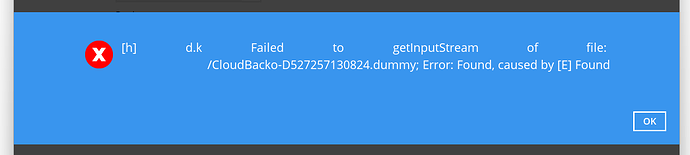
Cause
Microsoft 365 resets stored permissions from time to time, so the connection has to be signed in again. You can make this happen less often by letting trusted devices skip multifactor authentication (MFA) for longer.
Extend the period in Microsoft 365
- Sign in to the Microsoft Entra admin center as an Authentication Policy Administrator.
- Go to Identity → Users.
- Click Per-user MFA at the top right.
- Under Multifactor authentication, at the top of the page, click Service settings.
- Under Remember multifactor authentication on trusted device, tick Allow users to remember multifactor authentication on devices they trust. If it’s already ticked, untick it and click Save, then tick it again and click Save, so the setting is refreshed.
- Set the number of days trusted devices can skip multifactor authentication. We recommend 90 days or more.
- Click Save.
Reconnect OneDrive in the BOBcloud software
- Restart the Windows service Desktop Services (Desktop software) or Server Services (Server software).
- Open the BOBcloud software and go to Backup Sets → <backup set name> → Destination.
- Double-click the OneDrive destination and click Refresh to sign in again.