Error
The Server and Desktop software can show this problem in two ways:
- When you create a backup set, network folders don’t appear in the backup source, although you can see them in File Explorer. This happens even if the share is mapped to a drive letter (for example,
Z:).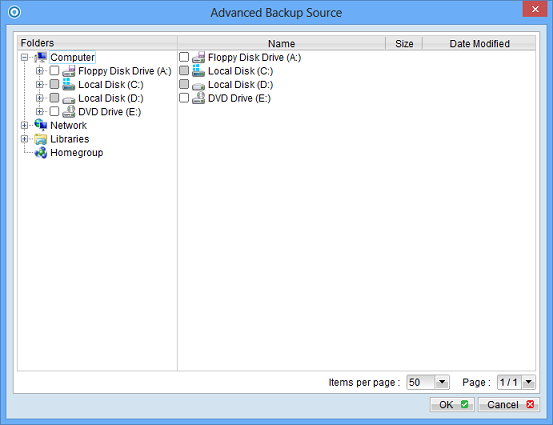
- After a network location has been backed up, its source folders show in red when you edit the backup source.
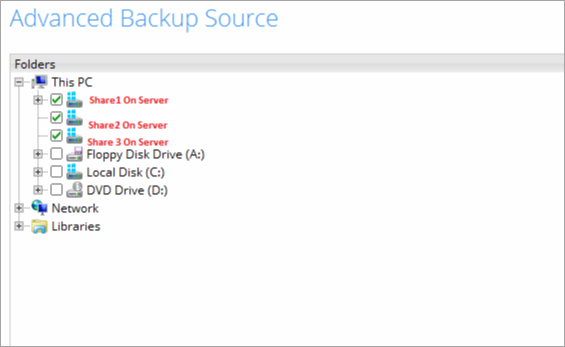
Note: this only affects network shares mapped in Windows (UNC paths). The Synology and QNAP modules don’t have this problem.
Cause
Windows User Account Control (UAC) gives members of the Administrators group two sets of rights: standard rights for normal use, and full administrator rights for programs run as administrator.
A drive you map in File Explorer, or with net use in a normal Command Prompt, is only linked to your standard rights. The backup software runs with full administrator rights, so it can’t see that drive.
Fix
Use either of these options.
Option 1: map the drive again with administrator rights
Open Command Prompt as administrator (right-click Command Prompt and click Run as administrator) and map the drive with net use, for example:
net use Z: \<NAS name or IP>\<share name> /persistent:yesOption 2: let Windows share mapped drives with administrator programs
This sets the EnableLinkedConnections registry value, so drives you map normally are also visible to programs running as administrator. You need to be signed in as an administrator.
- Press Windows key + R, type
regeditand press Enter. Click Yes if Windows asks for permission.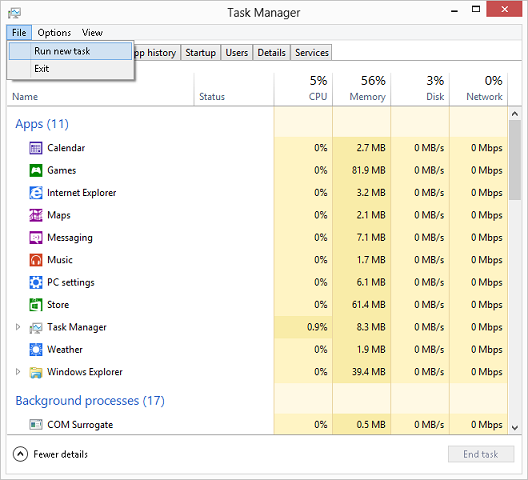
- Go to this key:
HKEY_LOCAL_MACHINE\SOFTWARE\Microsoft\Windows\CurrentVersion\Policies\System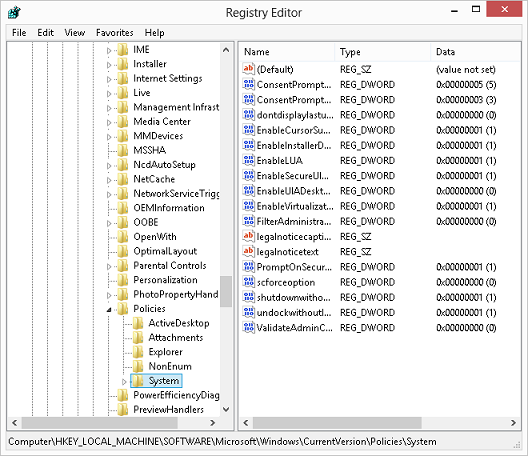
- Right-click System, point to New, and click DWORD (32-bit) Value.
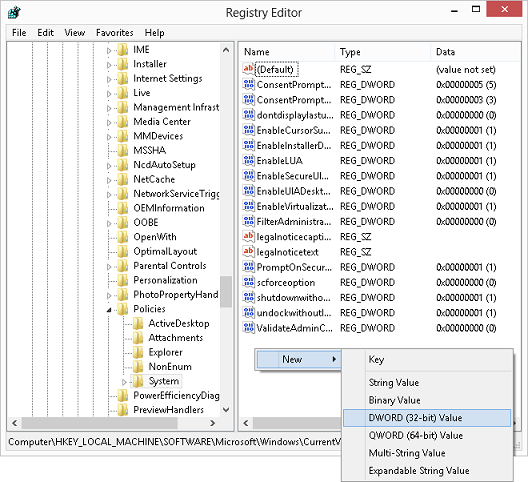
- Name it
EnableLinkedConnectionsand press Enter. - Right-click EnableLinkedConnections and click Modify.
- In Value data, type
1and click OK.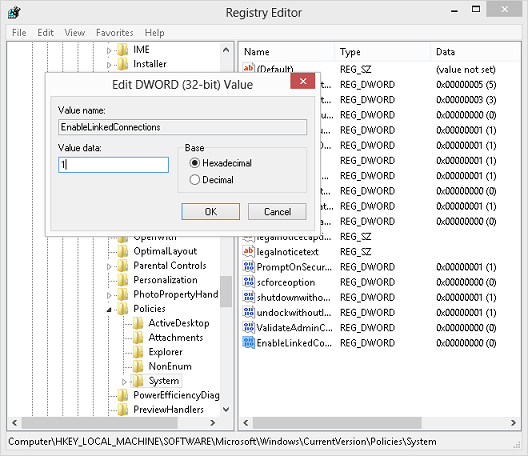
- Close Registry Editor and restart the computer.
- Open the backup software and add the network drive to the backup source. It should now appear.
For more detail, see Microsoft’s article Mapped drives are not available from an elevated prompt.