Wasabi as a BOBcloud predefined destination
BOBcloud’s predefined storage destinations are Azure UK, Wasabi EU and Wasabi UK, available on all UK and EU clusters. BOBcloud manages predefined storage and bills you for the data stored. You can still use your own storage, or any of hundreds of other cloud storage services, instead.
See the costs in our storage price calculator.
1. Use Wasabi on a new backup set
Create the account in our portal as usual and open the BOBcloud software on the device.
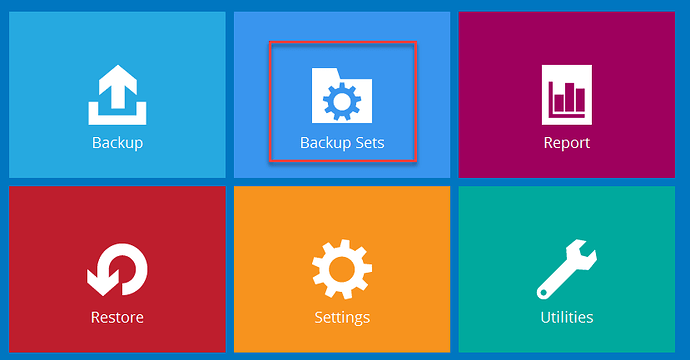
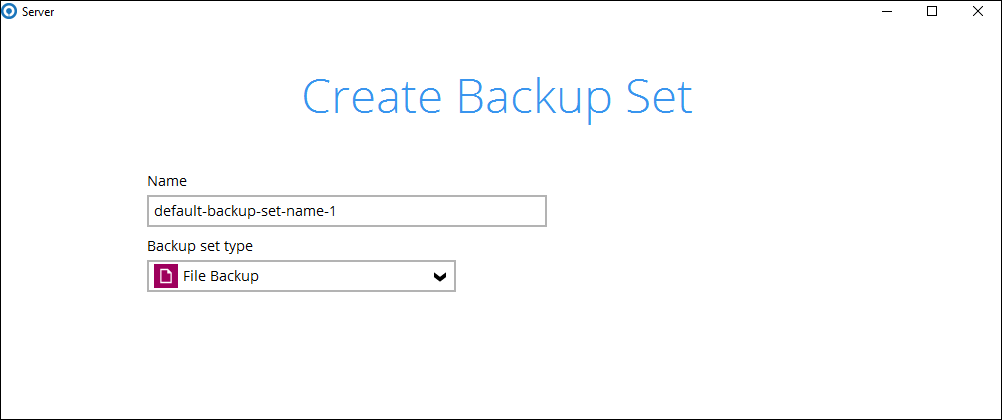
- Add a new backup set.
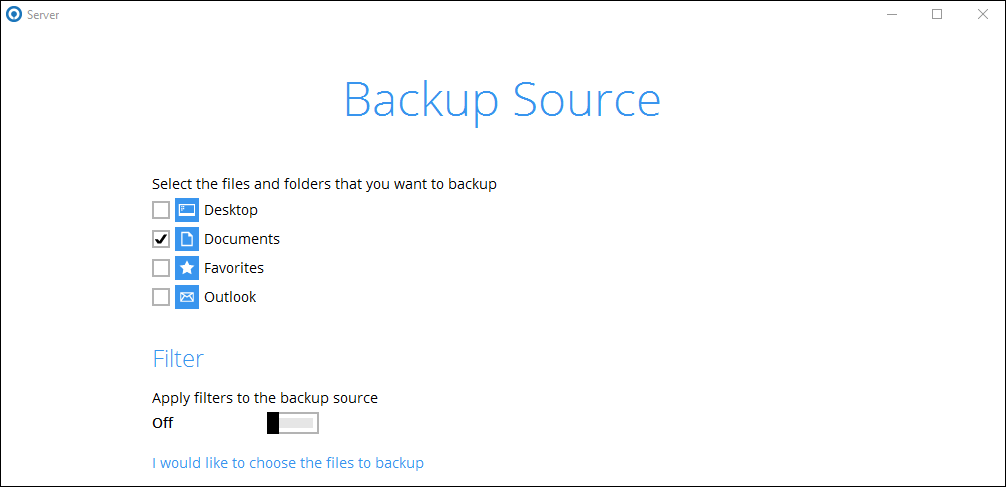
- Select the backup source.
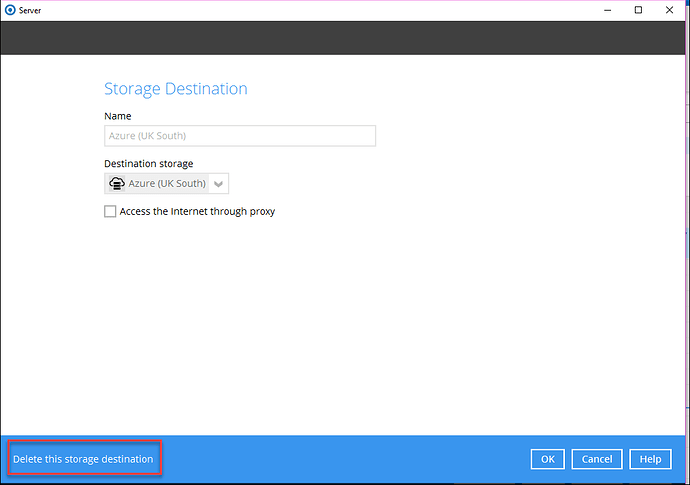
- Our Azure destination may already be set up on the account. If you don’t want to store data on Azure, double-click it to remove it.
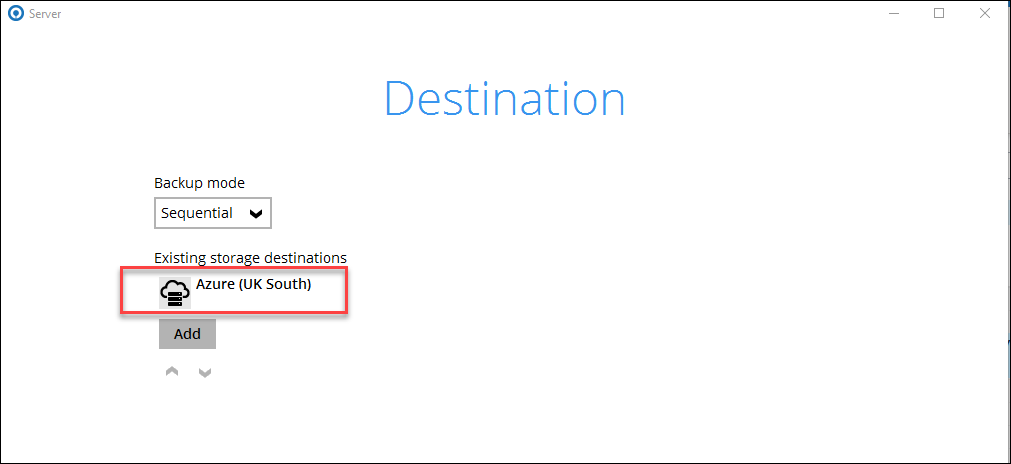
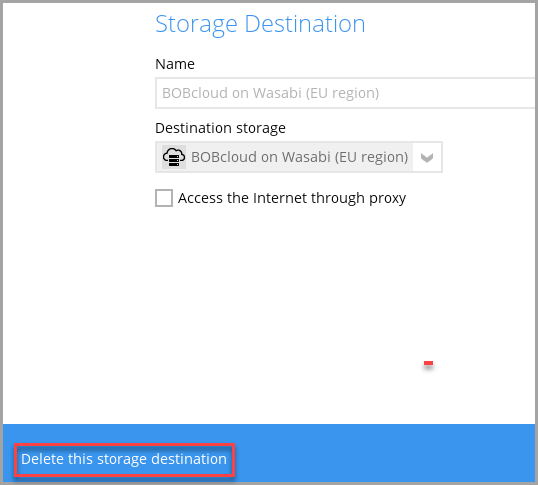
Click Delete this storage destination at the bottom left. Any data already on that destination is deleted and purged immediately, and we can’t restore it.

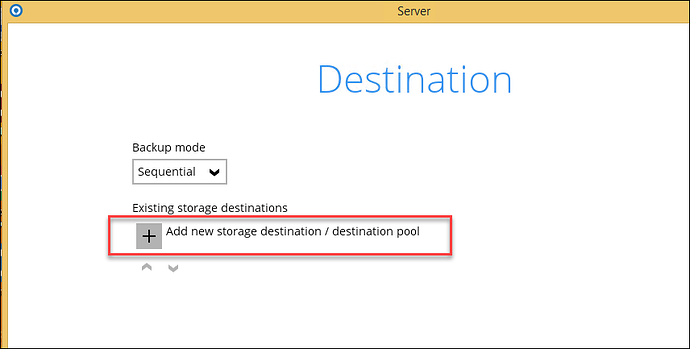
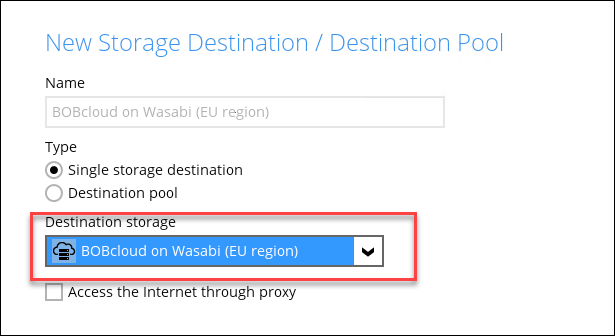
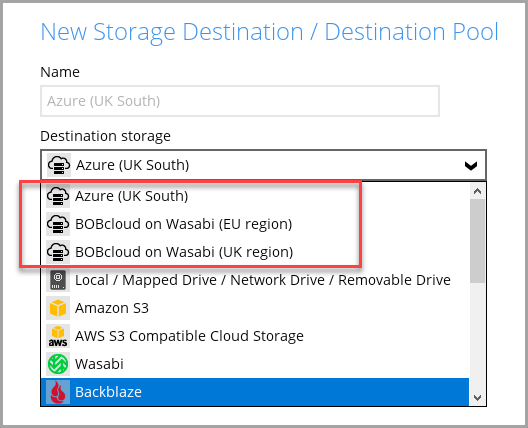
- Back on the Destination page, click + and add BOBcloud on Wasabi (EU region) or BOBcloud on Wasabi (UK region). You can also choose any other Wasabi or Azure region.
- Finish creating the backup set and run the backup.
That’s it. You are now backing up securely to our Wasabi storage, and we bill for the data stored there.
2. Add Wasabi to an existing backup set
Data can’t be moved automatically from one storage destination to another. To switch an existing backup set to Wasabi, for example to cut costs if its data is on Azure, add Wasabi as a second destination, then delete the old one once Wasabi has a full backup.
- Edit the backup set and click the Destination tab.
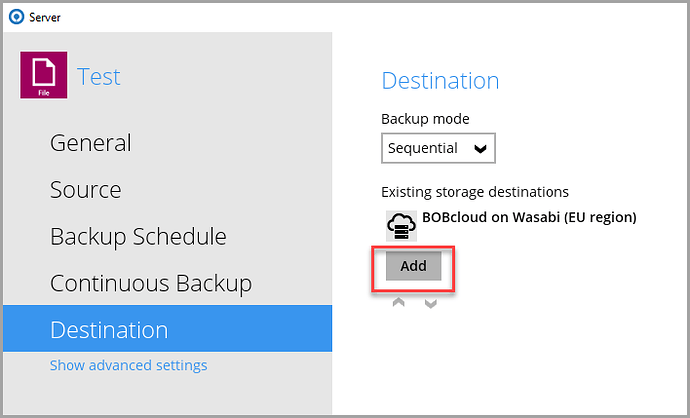
- In the dropdown, select BOBcloud on Wasabi (UK region) or (EU region).
- Finish editing the backup set.
When the backup set next runs, it backs up to all its destinations. The new destination only holds history and retention from that backup onwards; earlier history stays on the original destination, so bear this in mind before deleting it.
3. Delete the old storage destination (be careful)
Caution: when you delete a storage destination from a backup set, its data and all its history are purged immediately and can’t be recovered. Wait until the backup to the new destination has finished. If in doubt, contact us at support@bobcloud.net.
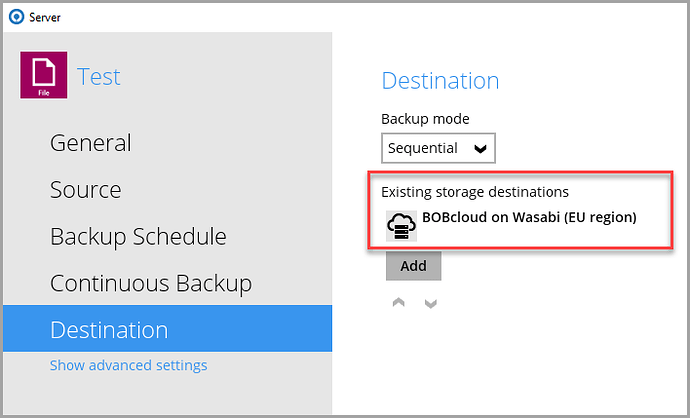
- Edit the backup set’s storage destinations and double-click the one you want to remove.
- Click Delete this storage destination at the bottom left.
FAQs
Can a backup account have more than one storage destination?
Yes. Many resellers back up to at least one cloud destination and a local USB disk or NAS. We highly recommend this.