Why backups are missed
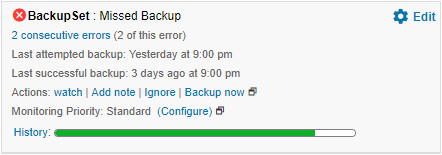
There are many reasons a scheduled backup can be missed. You will usually get an email warning first, and the portal shows the missed backup as a white bar in the timeline.
Common causes
- Permissions. By default, the backup scheduler service runs as the built-in Windows SYSTEM account, which can’t reach some data, such as network drives. A manual backup uses the logged-in user’s permissions instead, which is why manual backups often work when scheduled ones don’t. To fix this, run the service as a Windows account that can access the data.
- The service account has changed. If you set the service to run as a Windows user account, scheduled backups fail when that account is deleted or disabled, or its password changes.
- The backup scheduler service has stopped or won’t start. This is the most common cause on servers. See the steps below.
- The device is off or asleep. Desktops and laptops often miss backups because they were switched off or went into power-saving mode at the scheduled time.
- The time zone is wrong. The device’s time zone doesn’t match your region, so the backup runs at the wrong time.
- The backup software has been uninstalled.
Check the backup scheduler service
- Press Windows key + R, type
services.mscand press Enter. This opens Services. You can also search for Services from the Start menu.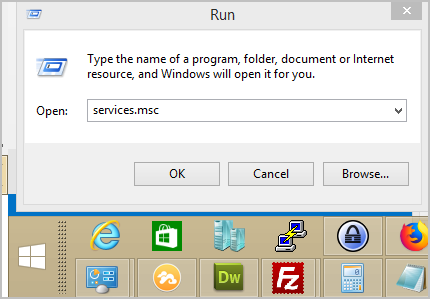
- Find Desktop Services (Desktop software) or Server Services (Server software).


- If its status is Running, right-click it and click Restart to refresh its settings.
- If it isn’t running, right-click it and click Start. Then right-click it, click Properties, and set Startup type to Automatic so it starts with Windows.
- If the service won’t start, Windows shows the reason. If it runs as a Windows user account, open Properties → Log On and re-enter the account’s current password.
Devices that are off or travelling
Devices that are switched off at the scheduled time, or carried by staff working across time zones, miss fixed-time schedules. To make sure they still back up without relying on users to start them:
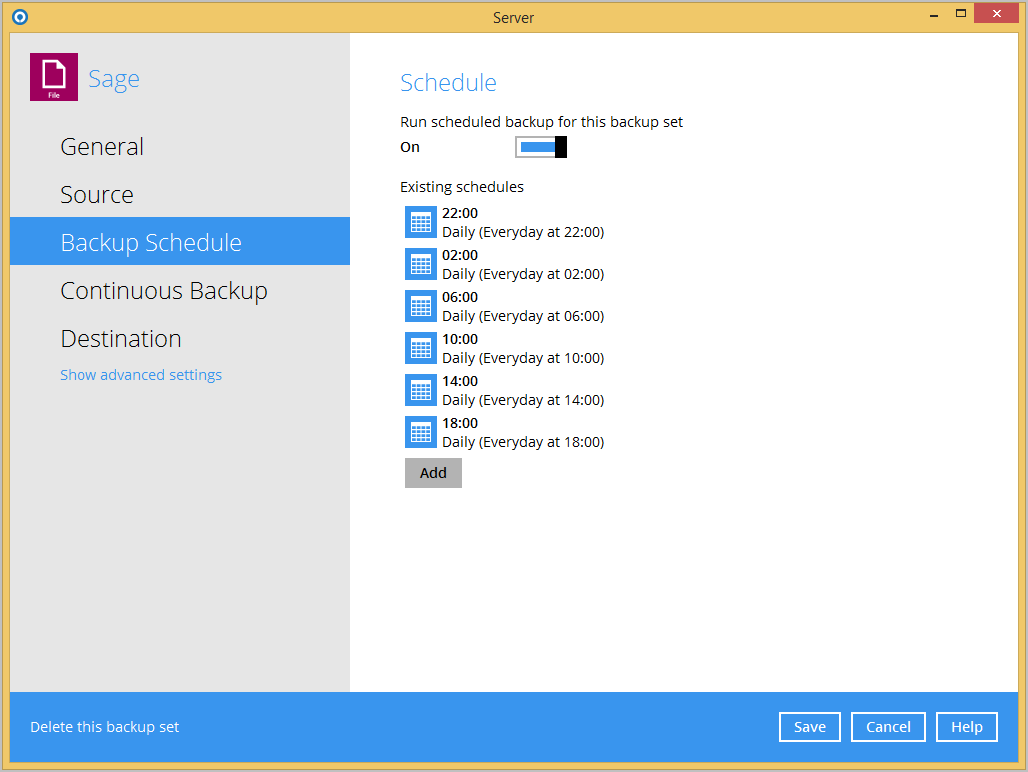
- Create a backup schedule that runs every 4 hours.
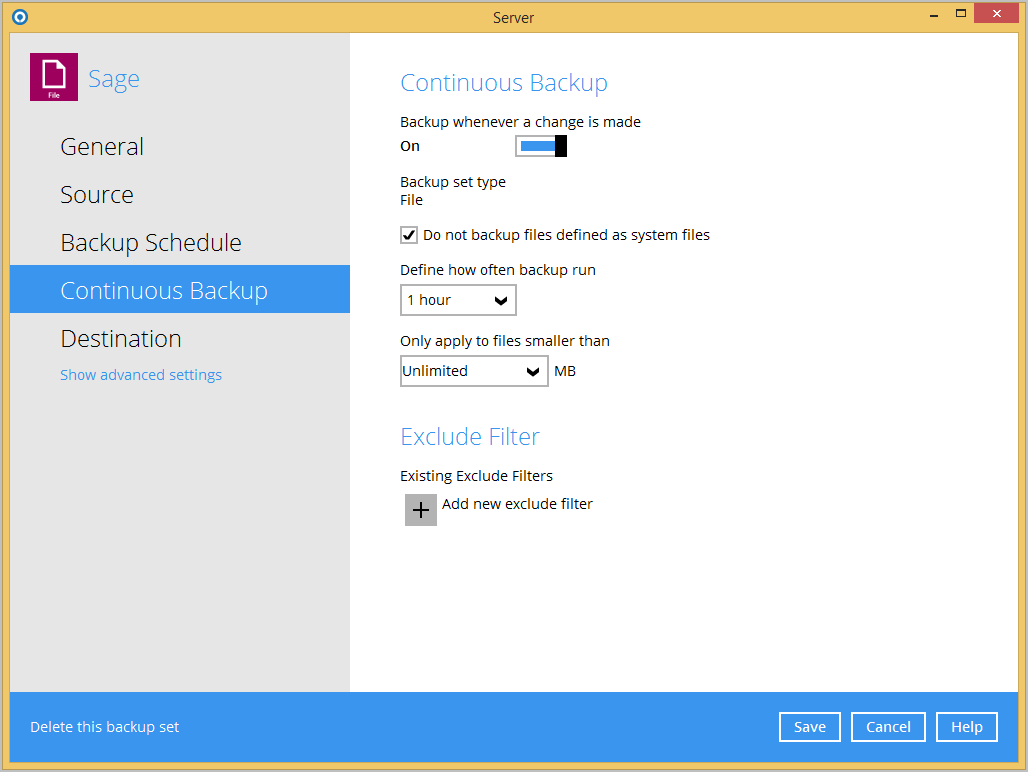
- Turn on Continuous Backup. Only do this on devices with plenty of resources, ideally with an SSD. Slower and older devices will see performance issues.
- Turn on a backup reminder when users sign out.
Check the logs
The logs show why a backup was missed or failed. The backup software keeps its settings and logs in these hidden folders:
Server: C:\Users\<username>\.obm
Desktop: C:\Users\<username>\.acb
The schedule didn’t run
The reason is in C:\Users\<username>\.obm\log\Scheduler\debug.log (desktop: .acb\log\Scheduler\debug.log). Logs for the previous nine days are kept here too.
The backup ran but failed
The reason is in C:\Users\<username>\.obm\log\<backup set ID>\Backup\ (desktop: the same path under .acb).
If you can’t resolve the issue, zip the whole .obm or .acb folder and attach it to a support ticket so we can check further.