Error
Scheduled backups fail to start, but manual backups of the same backup set work.
This usually affects backup sets whose data the default Windows account can’t reach, such as Windows user profile folders, Exchange mailboxes, and databases (MS SQL, MySQL) or network drives.
Cause
Manual backups run with the permissions of the user who is logged in. On a server, that’s usually an administrator who can reach all the data. On a desktop, users can always reach their own profile folder. That’s why manual backups normally work.
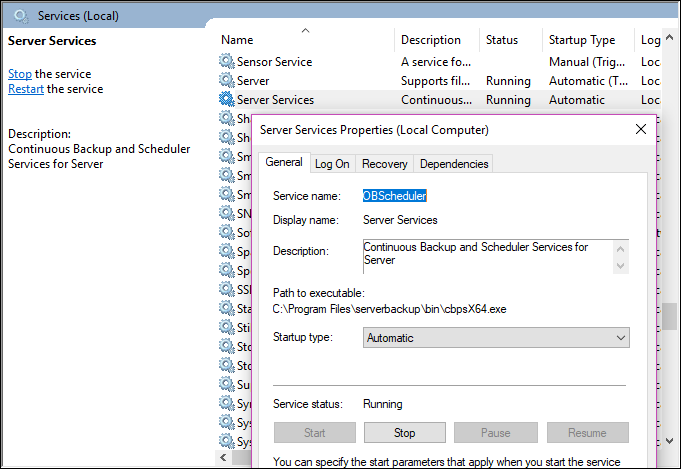
Scheduled backups can’t rely on anyone being logged in, so they run through a Windows service instead. By default, the service runs as the built-in SYSTEM account, which doesn’t have permission to reach all the data on the device. The service is:
- Server Services for the Server software
- Desktop Services for the Desktop software
Fix
Set the service to run as the same Windows account that runs the manual backup successfully.
- Press Windows key + R, type
services.mscand press Enter. - Right-click Server Services (Server software) or Desktop Services (Desktop software), and click Properties.
- Click the Log On tab and choose This account.
- Enter the account name (for example
DOMAIN\backupadminor.\usernamefor a local account), then its password twice. Click OK. - Right-click the service and click Restart.
The next scheduled backup will use that account’s permissions. If the account’s password changes, update it on the Log On tab too, or scheduled backups will stop again.
Find out why a scheduled backup didn’t run
Other things can stop scheduled backups, such as a temporary folder running out of disk space, or a temporary folder on a USB disk that has been unplugged.
The reason is normally written to debug.log in this folder:
- Server software:
C:\Users\<username>\.obm\log\Scheduler - Desktop software:
C:\Users\<username>\.acb\log\Scheduler
Scheduled backups don’t run and the Scheduler log folder is empty
Cause: AdoptOpenJDK (a separate Java installation) is installed on the device. Our backup software uses the Java that comes with it, and a separately installed AdoptOpenJDK can stop the scheduler starting, so no debug.log is created. This can affect both Server and Desktop software.
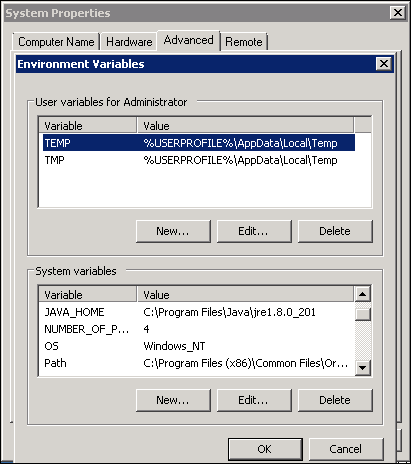
Fix: uninstall AdoptOpenJDK if it isn’t needed. If it is needed, check the Windows environment variables (Control Panel → System → Advanced system settings → Advanced → Environment Variables). If system variables such as JAVA_HOME or Path point to AdoptOpenJDK, contact support and we’ll help you change them without breaking the other program.