This guide covers restoring data from a Google Workspace backup set. For creating the backup set, see How to Create a Google Workspace Backup Set.
Contents
The document copy destination — read this first
Step 2 asks you to choose a document copy destination as well as a backup set and destination. This is the single most consequential choice in the whole restore, and it is easy to click past.
Native Google documents — Docs, Sheets and Slides — exist only inside Google and cannot be downloaded in their original form. The backup software therefore holds them in two ways: as lossy exported copies in your regular storage destination, and as full-fidelity copies in a Google Drive account. Which one you restore from is decided here.
| Choice | What you get back |
|---|---|
| A document copy destination (Source Google Drive, or whichever account you nominated) | Native documents restore complete, with the Google-specific features attached — comments, revision history and so on. |
| Restore from normal destination only | Native documents come back as exported files. The content is there; comments, revision history and Apps Script are not. |
Pick the document copy destination unless you have a reason not to. The one case for “normal destination only” is when the Google account holding the copies is gone — a deleted user, or a lost tenant — which is exactly the situation the exports in your storage destination exist to cover.
Everything else (Gmail, Drive files that were never native Google documents, Calendar, Contacts, Tasks) is unaffected by this choice.
What you can restore, and where to
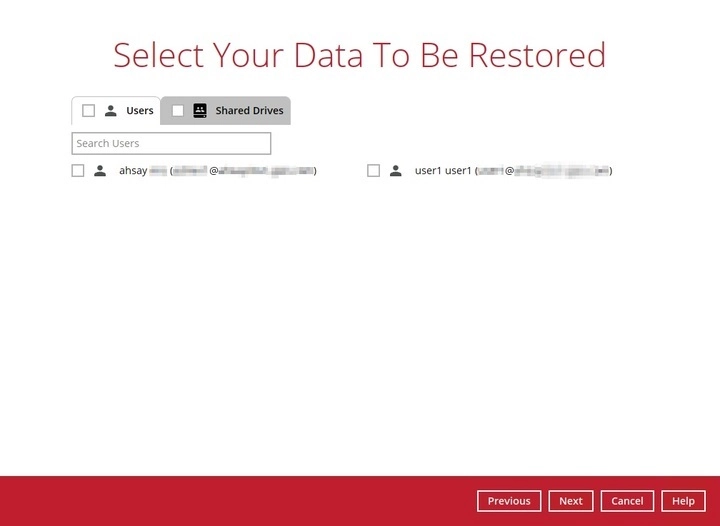
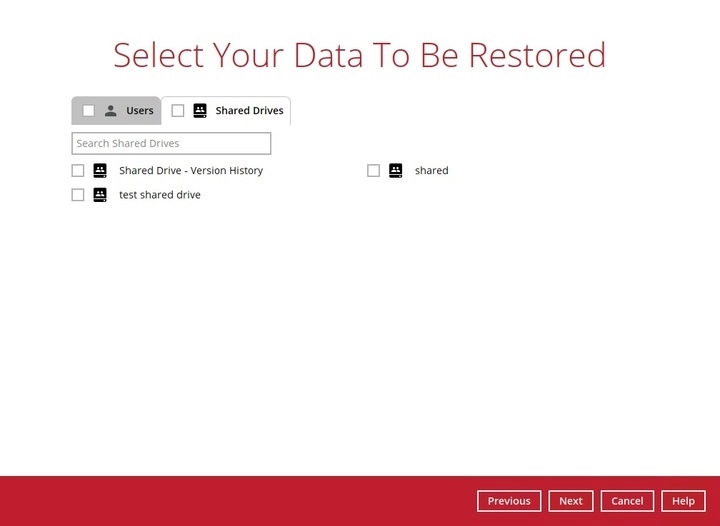
Restores are grouped into two categories, Users and Shared Drives. From v10.3 onwards both can be restored in the same job.
| Category | Contains |
|---|---|
| Users | Gmail, Drive, Calendar, Tasks, Contacts, Chat and Meet |
| Shared Drives | Shared Drive contents, with version history |
What the account type changes: an admin account can restore other users’ accounts and any Shared Drives in the same organisation. A single user account can only restore its own data and the Shared Drives it has access to. Chat is only available when the backup set was authorised with an admin account.
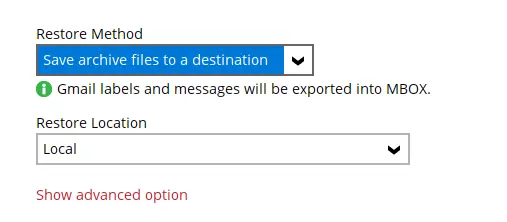
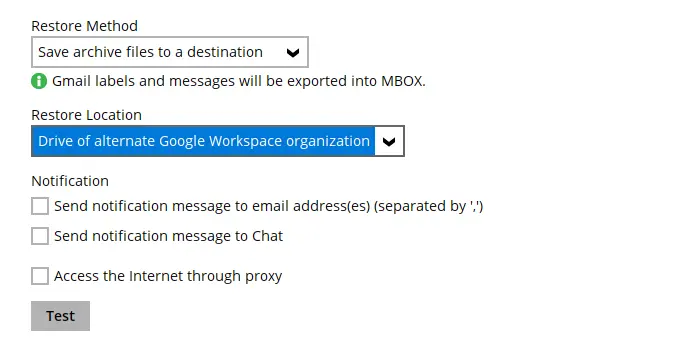
There are two restore methods. Restore items to Google Workspace puts data back into a live tenant, at the Original location, an Alternate location in the same organisation, or an Alternate login account in a different organisation. Save archive files to a destination writes the data out as files instead, to Local, to the Drive of the original organisation, or to the Drive of an alternate organisation.
Two constraints on archive export:
Shared Drives can only be exported to Local — the Drive destinations are not offered for them.
Formats differ by category. User restores export Gmail into MBOX. Shared Drive restores export native Google documents into Microsoft Office formats, so Docs become Word files and Sheets become Excel files.
Restoring data
-
Log in to the backup software and click the Restore icon on the main interface.
-
Select the backup set, the destination, and the document copy destination — see above before choosing. Set the temporary directory for restore files with Browse, then click Next.
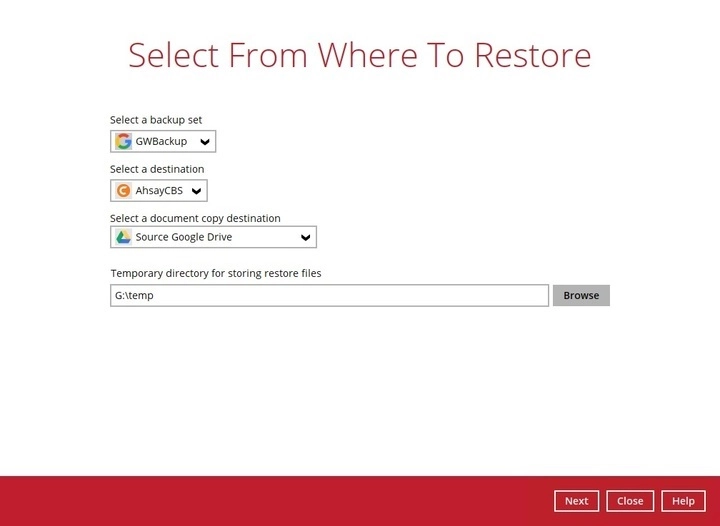
Note: the temporary directory needs free space for the data being restored. Keep it off the Windows system drive.
-
Choose the category to restore from — Users, Shared Drives, or both.
-
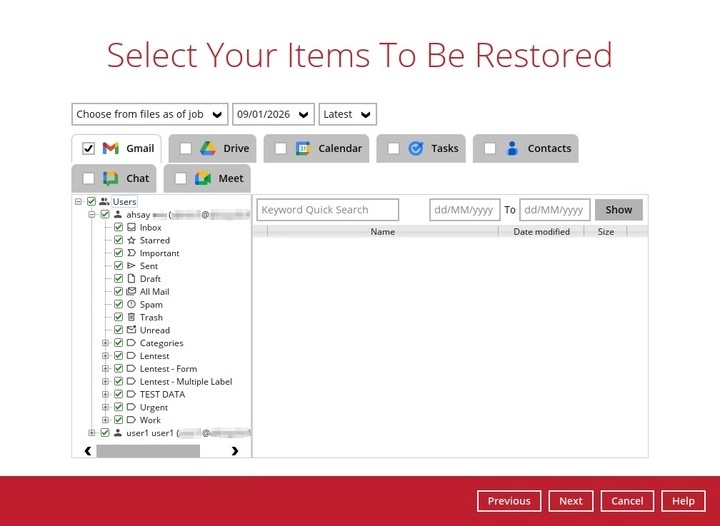
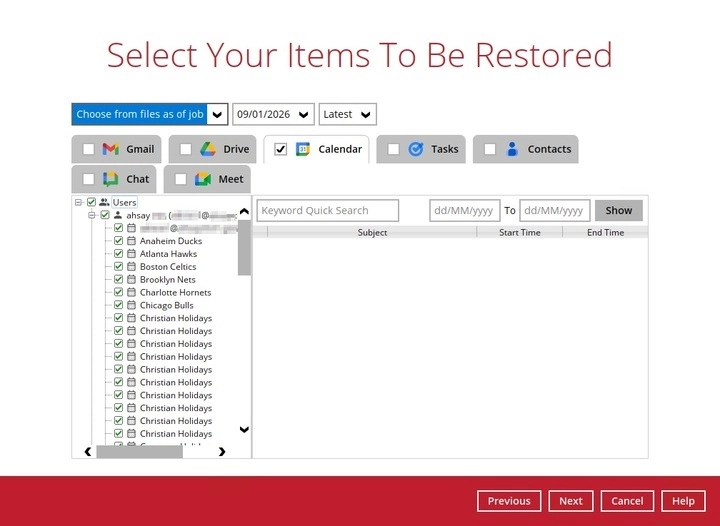
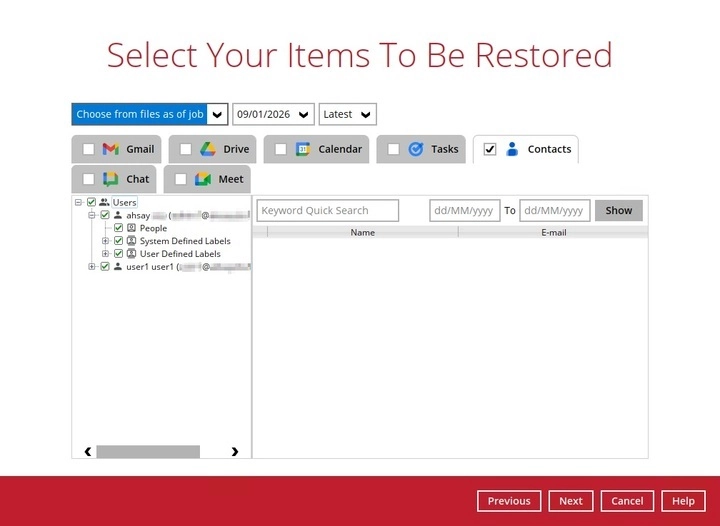
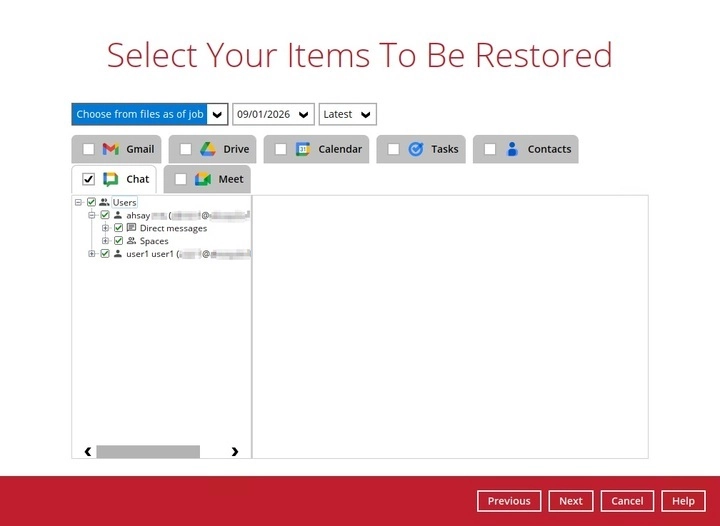
Select the items. The tabs across the top are the Google services available for restore; tick a tab to take everything under it, or expand the tree to pick individual items. Use the drop-downs at the top left to restore from an earlier backup job rather than the latest.
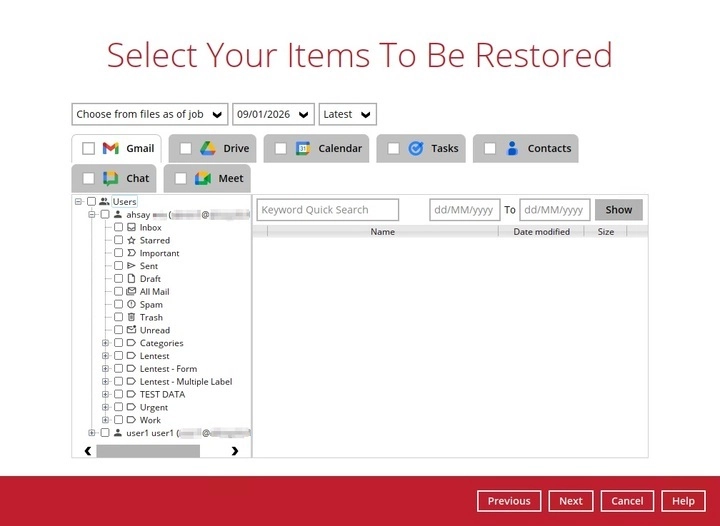
For Gmail, filter by keyword and received date using the From and To fields, then click Show.
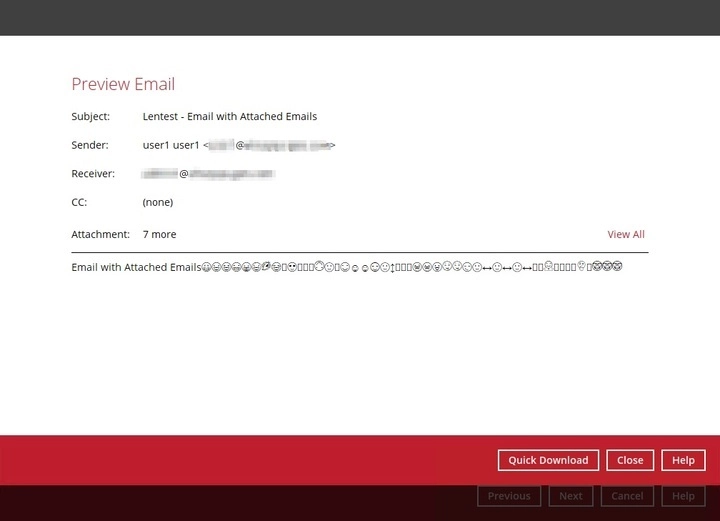
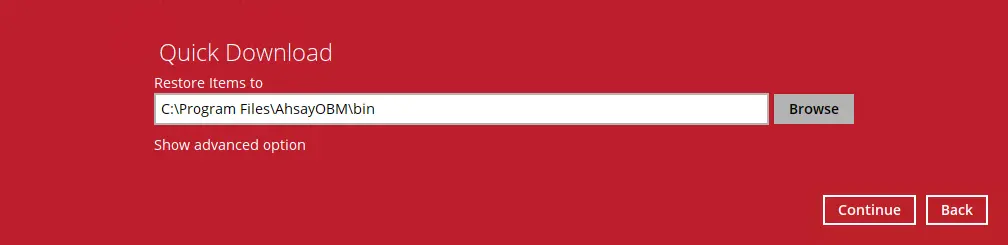
Click the magnifying glass button beside a message to preview it. From the preview, Quick Download restores that single message, or click an attachment name to retrieve just the attachment.
Drive works the same way: there’s a download button beside each file, and you can filter by modified date.
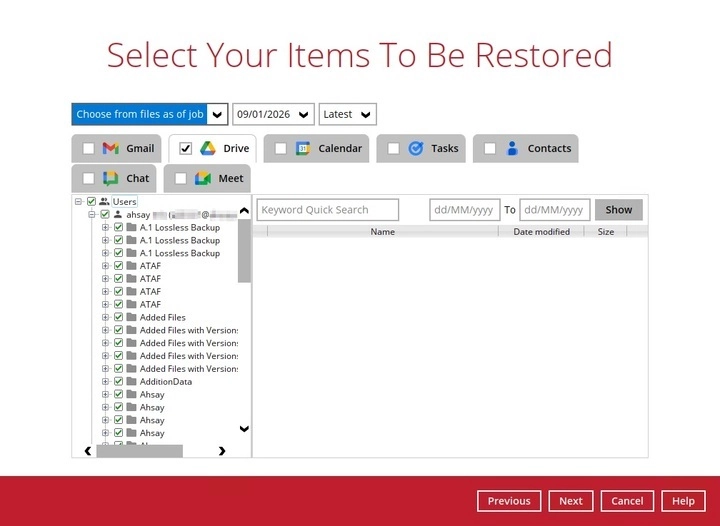
Calendar, Tasks and Contacts follow the same pattern, filtered by start and end time, due date, and name respectively.
For Chat, you can restore a conversation in its entirety, or pick from the Shared Files and Shared Media it contains. The download button at the top right of the window handles the chat itself; Shared Files and Shared Media are downloaded per item.
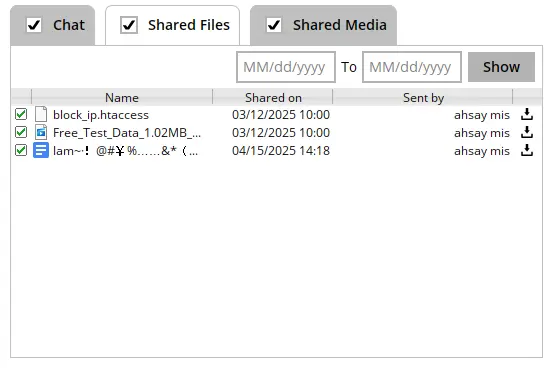
Meet and Shared Drives likewise offer per-item download.
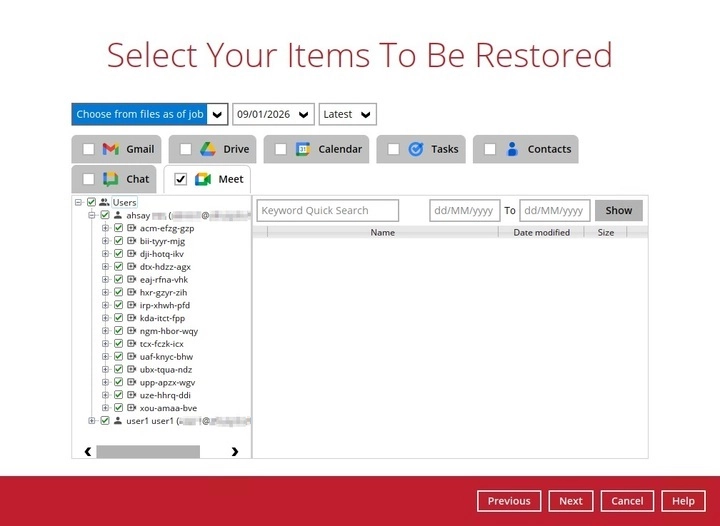
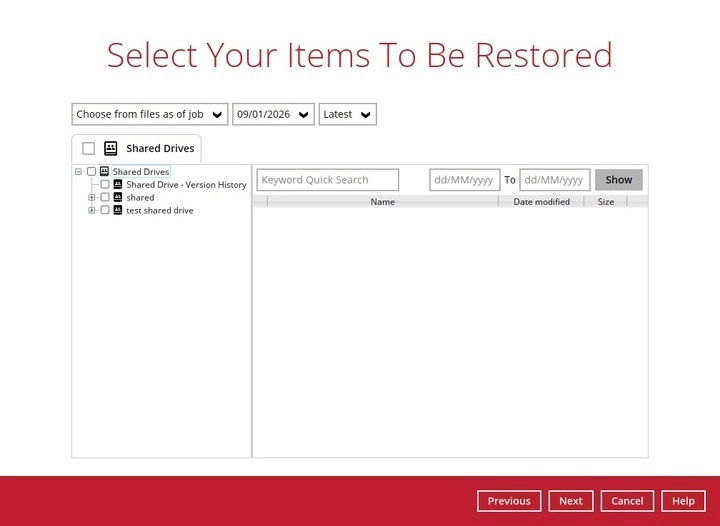
Click Next when the selection is complete.
-
Choose where the items will be restored to. Pick the Restore Method first — it determines which locations are offered, as do the account type and the category being restored.
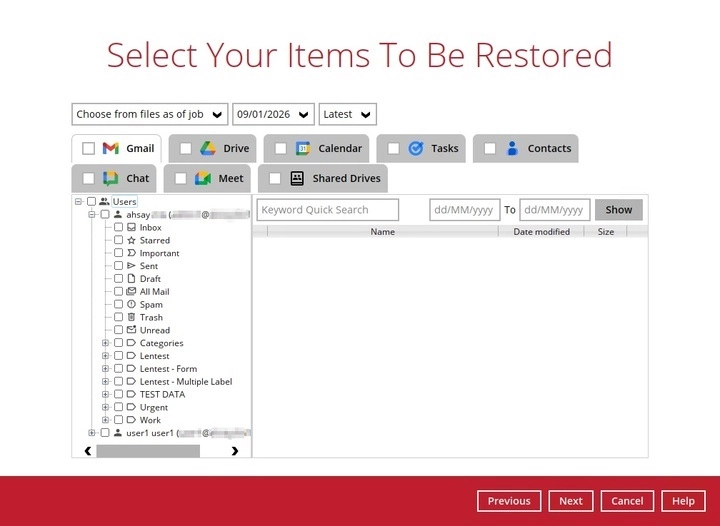
-
If restoring into Google Workspace, select Original, Alternate or Alternate login account. When restoring from Drive or Shared Drives you can also set Version History to all versions or latest only.
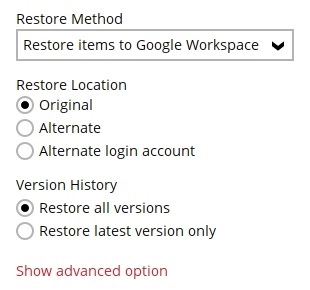
Show advanced option offers a checksum verification of in-file delta files during the restore, which adds a data summary to the report.

For Alternate, the next window lets you map each backed-up user or Shared Drive to a target.
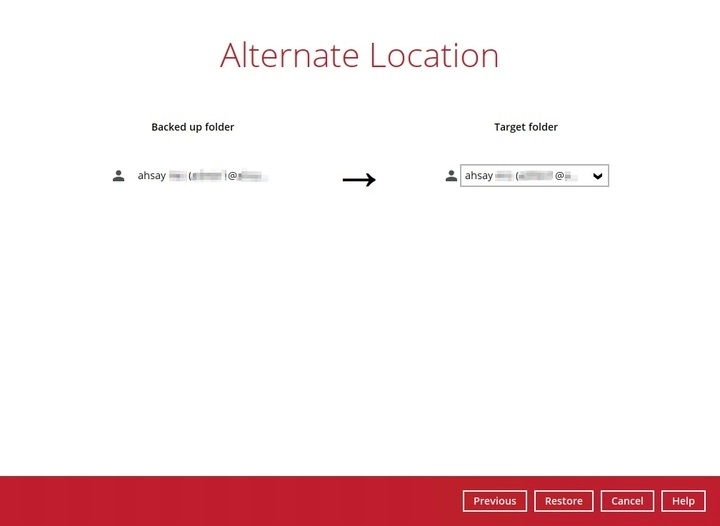
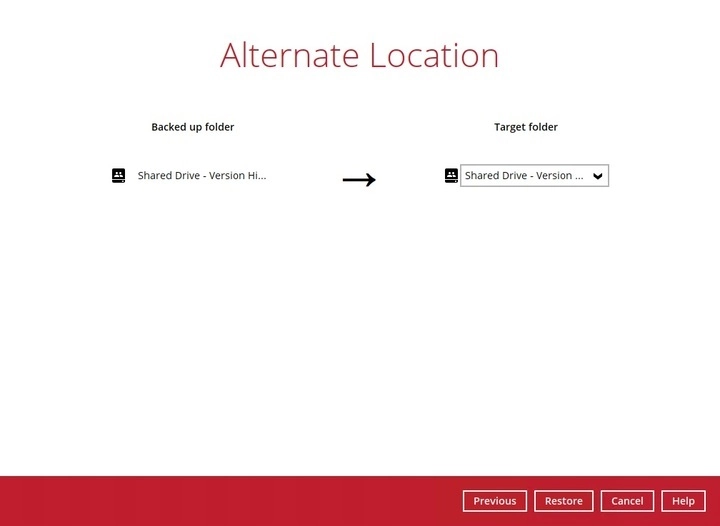
For Alternate login account, click Test, then Authorise. Sign in to the other Google Workspace account in the pop-up browser window, grant permission to the Service Account Generator app if prompted, then paste the authorisation code back and click OK. Once Test completed successfully appears, click Next and choose the target folder.
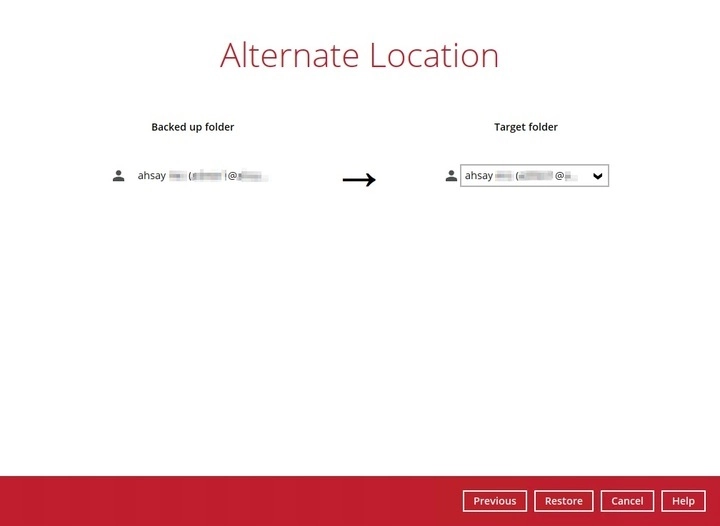
Note: the alternate login account must be a valid Google Workspace account. A consumer Gmail account will not work.
-
If exporting archive files, choose Local, or the Drive of the original or an alternate organisation. The dialog states the export format it will use.
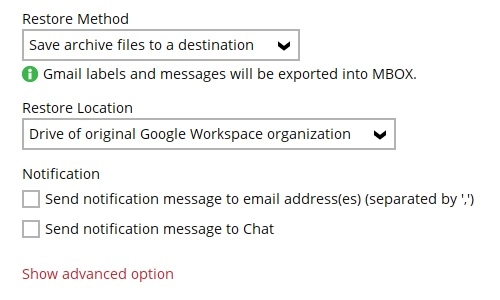
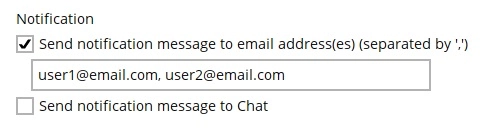
Where the target is a Drive, the recipient can be notified by email or Chat that data has been placed in their Restore folder. Several email addresses can be given, separated by commas.
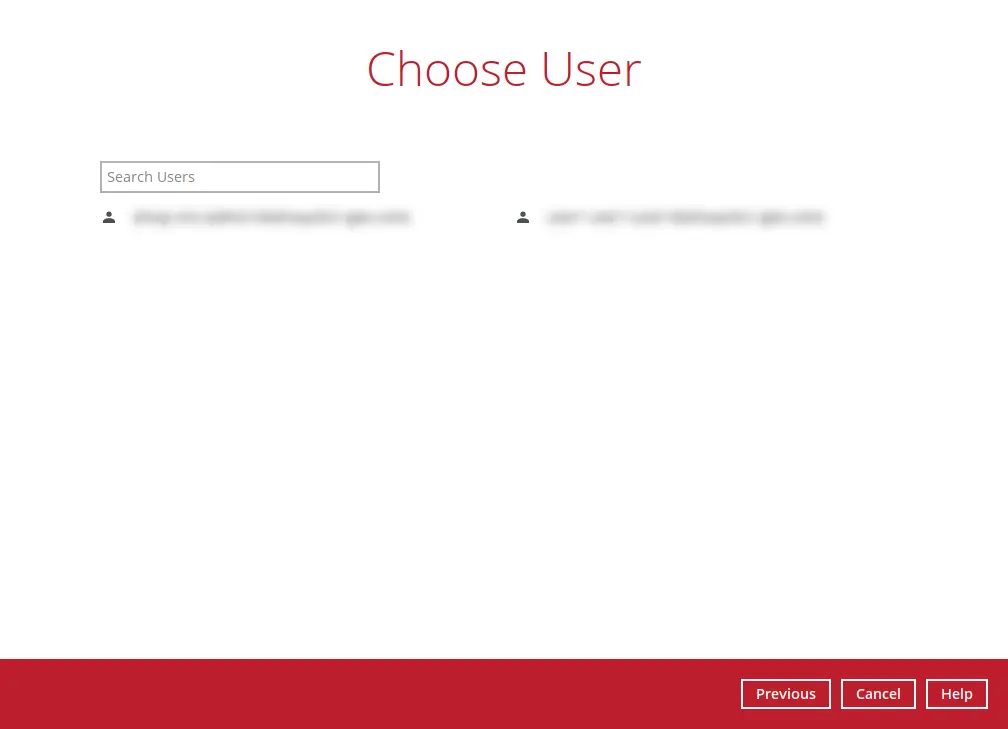
Then pick the user to restore to.
For an alternate organisation, the Test and Authorise sequence is the same as for an alternate login account.
-
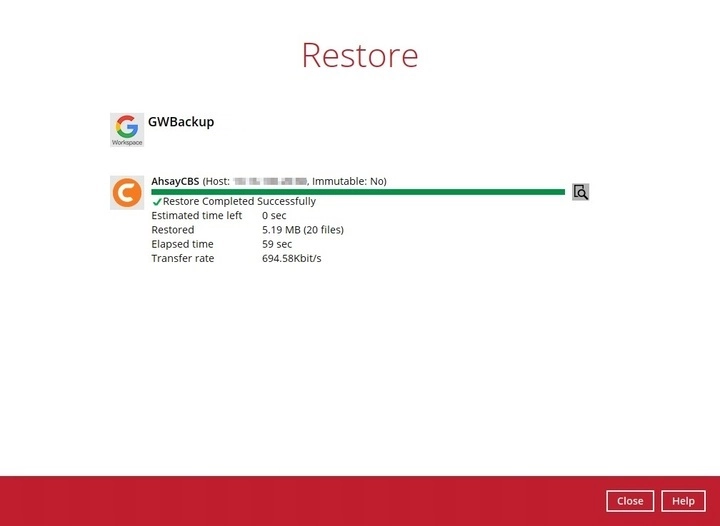
Click Restore to start. This screen is shown when the restore completes.
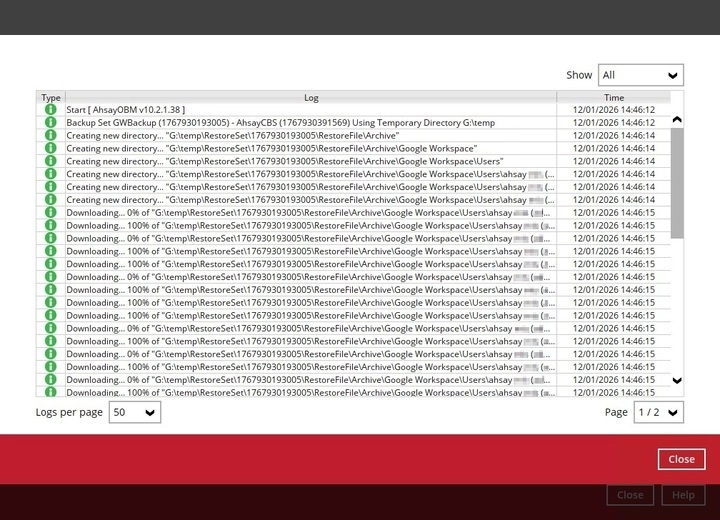
Click the magnifying glass button to open the restore log and confirm what was written.
Troubleshooting
| Symptom | Cause and fix |
|---|---|
| Restored Google Docs have lost their comments and revision history | The restore was run with Restore from normal destination only, so the exported copies were used. Re-run it selecting the document copy destination instead — assuming the Google account holding the copies still exists. |
| The Chat tab is missing | Chat is only available when the backup set was authorised with an admin account, not a single user account. |
| Only your own account appears at the user selection | The backup set was authorised with a single user account. Restoring other users requires an admin account. |
| Drive destinations are missing when exporting a Shared Drive | Expected. Shared Drives can only be exported to Local. |
| The alternate login account is rejected | It must be a valid Google Workspace account — a consumer Gmail account cannot be used. |
| Authorisation fails on an alternate organisation | Sign in as a super admin of that organisation and grant permission to the Service Account Generator app when prompted. |
| Restore fails partway with insufficient disk space | The temporary directory chosen in step 2 has run out of room. Point it at a drive with space for the restore. |
| A tab you expected is missing at item selection | That service was not included in the backup. Check the backup source on the backup set. |
For what does and does not survive a restore, see What can be restored on the backup set guide.
If you need a hand with any of the above, contact us at support@bobcloud.net.