Overview
Debug mode writes everything the backup software does to a log file. We can use this log to find the cause of a backup problem. You need to be signed in to Windows as an administrator.
Turn on debug mode
- Right-click Notepad and click Run as administrator.
- In Notepad, click File → Open. Change the file type from Text documents (*.txt) to All files, otherwise the file won’t be listed. Then open:
- Server software:
C:\Program Files\serverbackup\bin\RunCB.bat - Desktop software:
C:\Program Files\desktopbackup\bin\RunCB.bat
- Server software:
- Find this line:
and change it to:SET DEBUG_MODE=" "
Type it exactly as shown: two hyphens beforeSET DEBUG_MODE="--debug "debug, with no space between them. - Save the file.
Run the backup in debug mode
- Make sure the folder
C:\tempexists. The log is saved there, but you can use any folder you can write to. - Type cmd in the Start menu search, right-click Command Prompt and click Run as administrator. If you use a normal Command Prompt, the software still runs but the log won’t be complete.
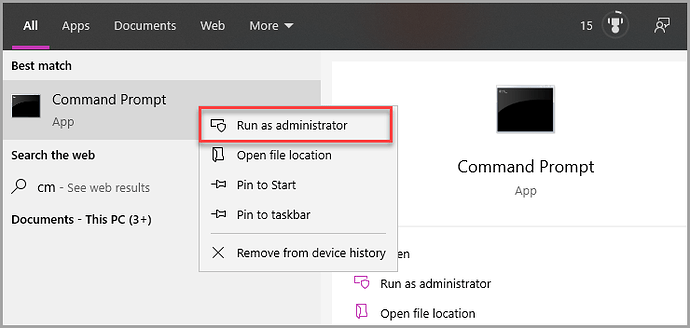
- Go to the software’s folder:
- Server software:
cd "C:\Program Files\serverbackup\bin" - Desktop software:
cd "C:\Program Files\desktopbackup\bin"
- Server software:
- Start the software with logging turned on:
RunCB.bat > C:\temp\backupdebug.log - The backup software opens. Run the backup that has the problem and wait for it to finish or fail.
- Close the backup software.
Send us the log and turn debug mode off
- Attach
C:\temp\backupdebug.logto a support ticket. - Open
RunCB.batin Notepad as administrator again, change the line back toSET DEBUG_MODE=" "and save the file.