Create your account
An account is for your business: the machines you look after, for all your clients, sit under it. Accounts are made by invitation.
We email you an invitation, and you create the account from it. It takes a few minutes and two emails.
The person who creates the account is its owner. Owners can do everything, including adding other people. See Logins and roles.
The invitation email
The invitation comes from BOBcloud Monitor, to the address we agreed with you, with the subject "Your invitation to BOBcloud Monitor". It contains one link.
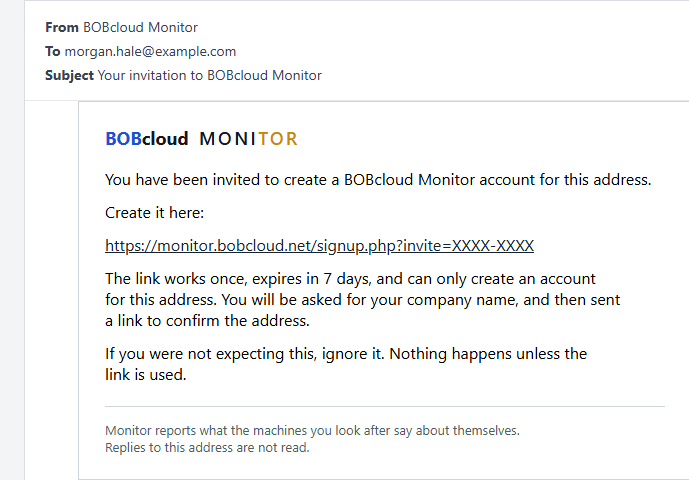
- The link works once, and only for that address.
- It expires 7 days after we sent it.
- If you were not expecting it, ignore it. Nothing happens unless the link is used.
If the link has expired
An expired or already-used link does not open the form. It takes you to a page on our website for asking about an account instead. You do not need to fill that in. Email support@bobcloud.net and ask for a new invitation. Replies to the invitation email itself are not read.
Fill in the form
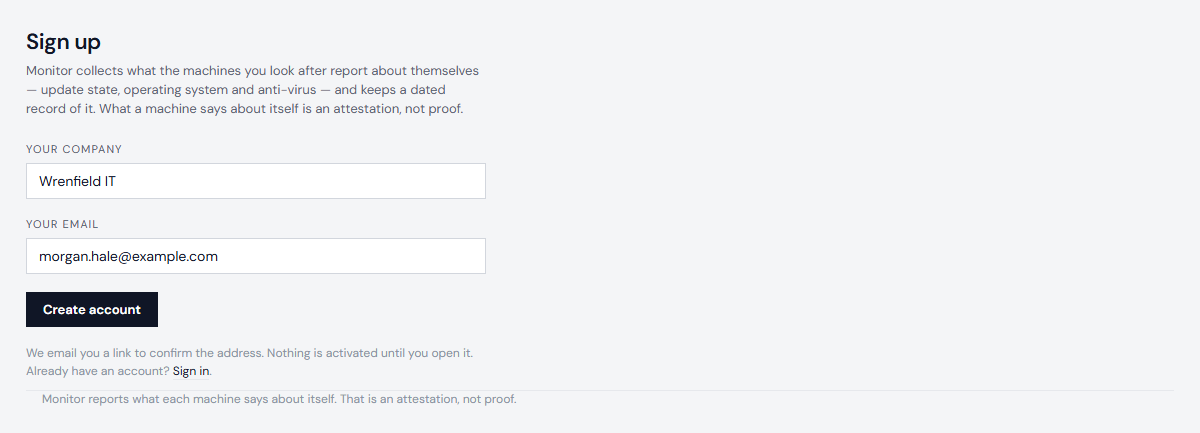
The link opens the sign-up form with your address already filled in. It cannot be changed: the invitation is for that address, which becomes your username. Enter your company name and choose Create account.
You then see this page:
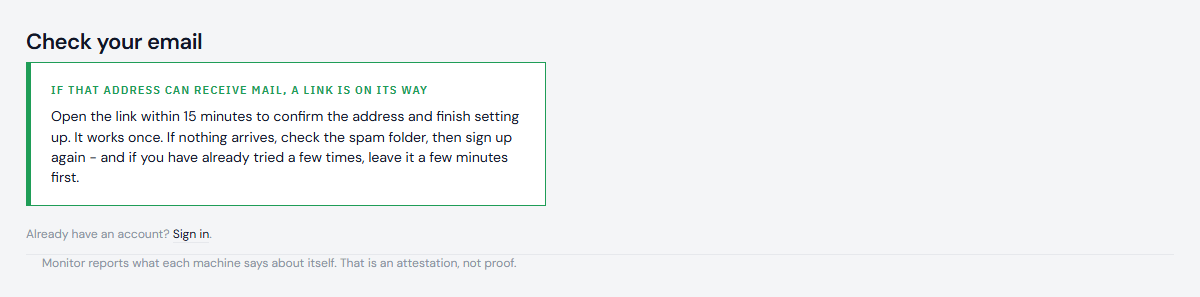
Confirm your address
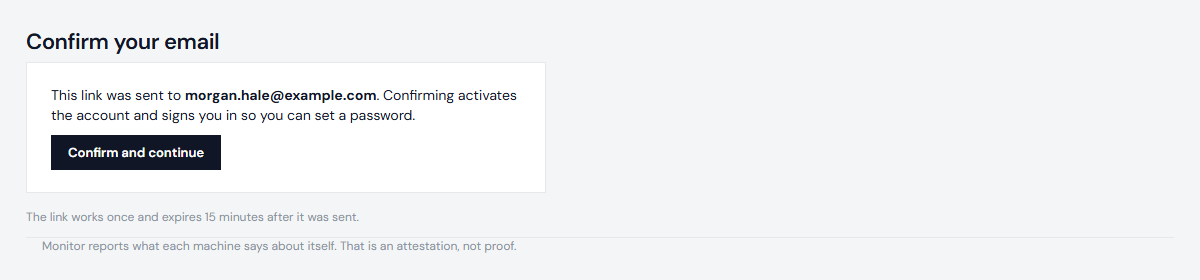
A second email comes from BOBcloud Monitor, with the subject "Confirm your email address". It contains one link.
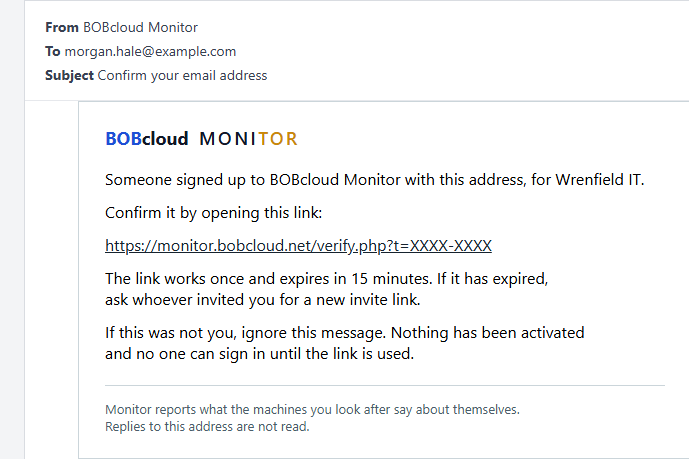
- This link works once and expires 15 minutes after it was sent.
- Nothing is activated until it is opened.
- If it expires before you open it, ask for a new invite link, as the email says: email support@bobcloud.net.
The link opens a page asking you to confirm. Opening it does not use it up; choosing Confirm and continue does.
Set your password
Next you choose your password. It must be at least 12 characters, and a short phrase you can remember is a good choice. The page offers a suggestion you can use instead. Your name is optional, and is what other people on your account see in the audit log.
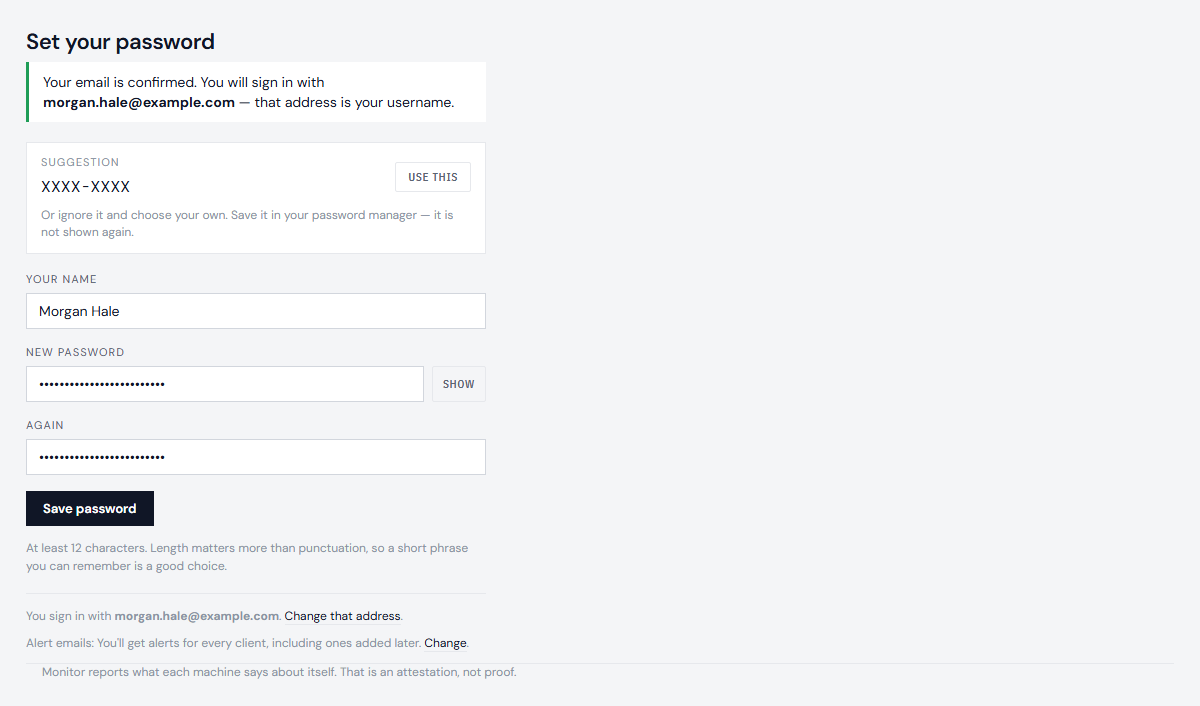
Choose Save password.

Your first sign-in
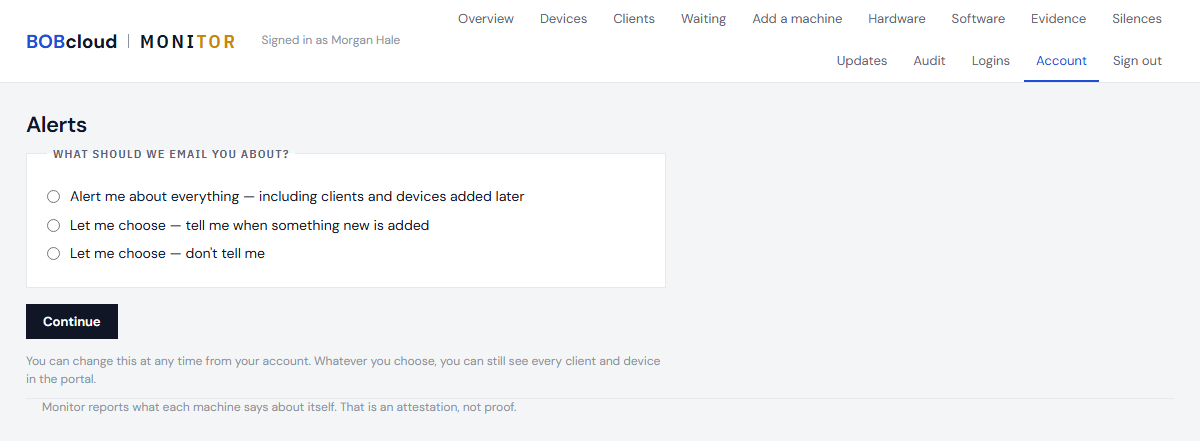
Choose Continue. You are signed in. The first time, the portal asks one question: which alerts to email you. You can change the answer later.
From then on, sign in to the portal with your address and the password you chose. If you forget it, Forgotten your password? on the sign-in page sends you a link to set a new one.
Next steps
- Logins and roles: add the people who work with you, as owners or staff.
- Add a client: set up your first customer, so their machines have somewhere to go.
Next: Logins and roles