Logins and roles
Everyone who signs in to your account has their own login. Each login is either an owner or staff.
This page is the reference for who can do what. The other guides link here.
Your customers do not sign in. Machines report to you, and you give your customers the evidence.
Owner and staff
Anyone on your account, owner or staff, can:
- see every client, machine, reading, and the audit log;
- approve or reject a machine that is waiting, and revoke one;
- add a client or rename one;
- build an evidence pack;
- choose their own alert emails, and change their own password and email address.
Only an owner can:
- add, disable and re-enable logins, and set a new password for someone else;
- make a new enrolment code;
- move machines between clients, and archive or restore a client;
- create or end a silence;
- switch automatic updates on or off.
The person who created the account is its first owner. An account can have several owners.
Add a login
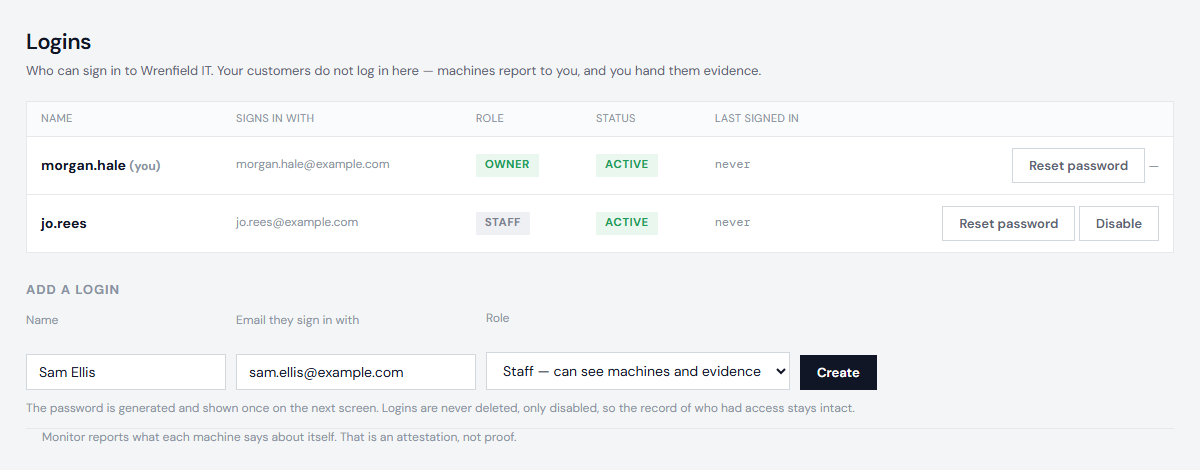
- Open Logins. Only owners see it.
- Enter a name, the email address they will sign in with, and a role, then choose Create.
- The new password is shown once, on the next screen. Give it to them then. It is stored only as a hash, so nobody can read it back later, including you.
They can change it themselves from Account.
When someone leaves
Choose Disable beside their login. They can no longer sign in. Their history stays, so the audit log still shows what they did. Logins are never deleted, only disabled. Enable lets them back in.
You cannot disable your own login, and you cannot disable the last active owner. Add another owner first.
If they could have seen the enrolment code, make a new one on Waiting. The old code stops working at once, and machines that have already joined are not affected.
Set a new password for someone
Choose Reset password beside their login. Their current password stops working at once, and a new one is shown once for you to give them.
Every one of these changes is recorded in the audit log. See Read the audit log.
Next: Add a client